Vantage Fit sends a variety of notifications to keep employees engaged — emails, push notifications, challenge alerts, and event reminders. As an admin, you have direct control over some of these, while others require your Vantage Fit account manager.
Here is a full breakdown of what you can control, what you can request, and what is outside your scope.
System Emails: 8 Toggleable Types
Vantage Fit sends the following automated email types. Each one can be enabled or disabled independently:
| Email Type | What It Does | Default State |
|---|---|---|
| Welcome | Sent when a new employee account is created | Enabled |
| App Intro | Introduces key features after account creation | Enabled |
| Enrollment | Notifies employees when added to a challenge | Enabled |
| Challenge Start | Announces when a challenge goes live | Enabled |
| Challenge Completion | Summarizes results when a challenge ends | Enabled |
| Challenge Reminder | Periodic nudges during active challenges | Disabled |
| Weekly Summary | Weekly digest of employee activity | Enabled |
| Master Disable (master email switch) | Turns off all Vantage Fit emails company-wide | Off |
Note: The master disable flag (
master email switch) overrides everything. When it is active, no system emails of any kind are sent to your employees. This is typically used by companies that handle all wellness communications through their own internal channels.
How to Change Email Settings
Currently, email toggles are not self-serve. To enable or disable any email type:
- Contact your Vantage Fit account manager.
- Specify which email type(s) you want to turn on or off.
- Your account manager will update the configuration for your company.
Changes typically take effect within one business day.
Tip: Before disabling any email type, consider the impact. Weekly Summaries and Challenge Start emails are among the highest-engagement emails. Turning them off can reduce employee participation.
Push Notifications: Direct Admin Control
You have direct, self-serve control over push notifications through the dashboard.
Sending Custom Push Notifications
- Go to Community in the left sidebar.
- Click Publish Notifications.
- Write your notification message.
- Select the target audience — all employees, or filter by department, location, or demographics.
- Preview the notification.
- Click Send.
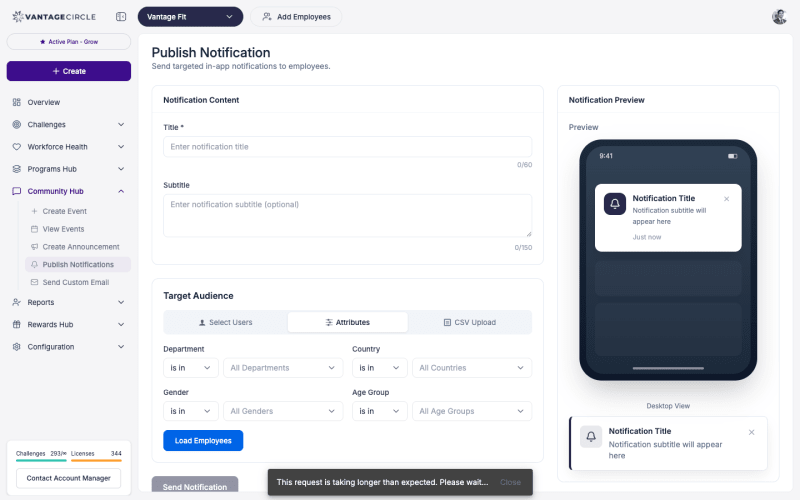
This is the most flexible notification tool you have. Use it for:
- Announcing new wellness programs or challenges.
- Motivational messages (“Halfway through the month — keep those steps up!”).
- Company-wide wellness reminders.
- Event promotions.
Challenge-Specific Notifications
You can also send targeted push notifications to participants of a specific challenge:
- Go to Challenges and open the challenge.
- Click Manage to open the Manage Challenge page.
- Click Send Notification.
- Write your message and send.
The notification goes only to participants of that challenge — not the entire company.
Event Invitations and Reminders
When you create or manage events, you can send notifications directly from the event:
- Invitations — Send to the event’s target audience when you first publish the event. Employees receive a push notification and/or email with event details and an RSVP link.
- Reminders — Send to employees who have RSVPed “Yes” or “Maybe” as the event date approaches.
Both are sent from the Events page in the dashboard. Open the event and click Send Invitations or Send Reminder.
Tip: Send a reminder 24 hours before the event and another one an hour before for best attendance. Employees who RSVPed days ago may have forgotten.
Custom Emails
You can send fully custom emails to employees:
- Go to Community in the left sidebar.
- Click Send Custom Email.
- Compose your email with a subject line and body.
- Select the target audience.
- Preview and send.
Custom emails are branded with your company’s logo and colors automatically. Use them for:
- Detailed wellness program announcements that need more content than a push notification.
- Monthly wellness newsletters.
- Challenge kickoff communications with instructions and context.
What Admins Cannot Currently Control
Some notification types are outside your direct control:
Individual Employee Notification Preferences
Employees cannot currently customize which notification types they receive at an individual level. All notification settings are company-wide. Individual notification preferences are on the product roadmap.
System Push Notification Types
Certain push notifications are system-automated and cannot be toggled by admins:
- Daily step goal reminders (employee-controlled locally).
- Activity sync notifications.
- Badge award notifications.
- League tier change notifications.
These are triggered by the system based on employee activity and cannot be disabled at the company level.
Local Reminder Settings
Employees can set their own local reminders within the app (e.g., “Remind me to walk at 3 PM”). These are controlled entirely by the employee on their device. Admins have no visibility into or control over local reminders.
Summary: Admin Notification Controls at a Glance
| Notification Type | Admin Control | How |
|---|---|---|
| System emails (8 types) | Toggle on/off | Via your Vantage Fit account manager (not self-serve) |
| Master email disable | Toggle on/off | Via your Vantage Fit account manager |
| Custom push notifications | Full control | Community → Publish Notifications |
| Challenge notifications | Full control | Manage Challenge → Send Notification |
| Event invitations | Full control | Events → Send Invitations |
| Event reminders | Full control | Events → Send Reminder |
| Custom emails | Full control | Community → Send Custom Email |
| Individual employee preferences | No control | Not yet available (roadmap) |
| System push notifications | No control | Automated by the system |
| Local device reminders | No control | Employee-controlled |
Best Practices
- Use a mix of channels. Push notifications for time-sensitive, short messages. Emails for detailed content. Do not rely on just one channel.
- Do not over-communicate. One to two push notifications per week is the sweet spot. Too many leads to employees disabling notifications entirely.
- Time it right. Send notifications during work hours. Avoid early mornings, late nights, and weekends.
- Coordinate email toggles with your communications strategy. If you use your own internal newsletter for wellness, you may want to disable certain system emails to avoid duplicate messaging.
- Preview everything. Always preview push notifications and custom emails before sending. Typos in a notification that goes to 10,000 employees are hard to undo.
Need more help? Contact your Vantage Fit account manager or email support@vantagecircle.com.
Related articles: