Vantage Fit lets you create and manage wellness events — yoga sessions, health talks, fitness workshops, team outings, and more. Employees can RSVP, get reminders, and receive all the event details through the app.
Creating an Event
- Log in to the Vantage Fit Admin Dashboard.
- Go to Events in the left sidebar.
- Click Create or Create Event.
- Fill in the event details:
- Title — a clear, descriptive name for the event.
- Description — what the event is about and what to expect.
- Benefits — what employees will gain from attending.
- FAQ — common questions and answers about the event.
- Cover image — a visual that represents the event.
- Venue — physical location or virtual meeting link.
- Date and time — when the event starts and ends.
- Set the target audience (see below).
- Save and publish the event.
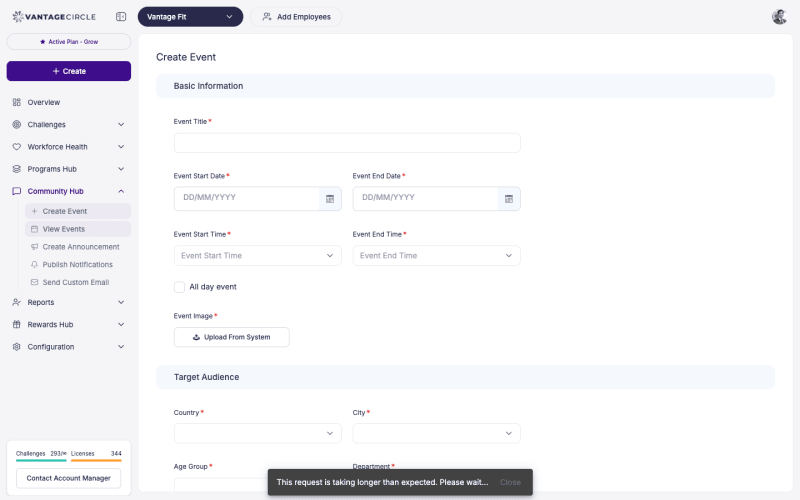
Targeting an Event
You can control who sees the event:
- Company-wide — visible to all employees.
- By country — target employees in specific countries.
- By city — target employees in specific cities.
- By demographics — filter by department, gender, age range, or other criteria.
Tip: Use location targeting for in-person events so only employees near the venue see the invitation. Use company-wide targeting for virtual events.
Event Lifecycle
Events move through three stages:
| Stage | Description |
|---|---|
| Upcoming | Event has been created but the date has not arrived yet. Employees can RSVP. |
| Ongoing | The event is currently happening (between start and end time). |
| Past | The event has ended. Results and attendance data are retained. |
Sending Invitations and Reminders
Invitations
After creating an event, you can send invitations to the target audience:
- Open the event from the Events page.
- Click Send Invitations.
- Employees receive a push notification and/or email with event details and an RSVP option.
Reminders
As the event date approaches:
- Open the event.
- Click Send Reminder.
- A reminder notification goes to all employees who have RSVPed “Yes” or “Maybe.”
Tip: Send a reminder 24 hours before the event and another one an hour before for best attendance.
Tracking RSVPs
The event detail page shows RSVP status in real time:
- Yes — employee plans to attend.
- No — employee cannot attend.
- Maybe — employee is undecided.
You can see the total count for each response and view the list of names in each category.
Rescheduling an Event
If you need to change the date or time:
- Open the event from the Events page.
- Click Reschedule or edit the date/time fields.
- Save the changes.
- Consider sending a notification to RSVPed employees about the change.
Note: Rescheduling does not automatically notify employees. Send a push notification or reminder after rescheduling to make sure attendees know about the new date.
Cancelling an Event
If an event needs to be cancelled:
- Open the event from the Events page.
- Click Cancel Event.
- Confirm the cancellation.
- Send a notification to RSVPed employees letting them know.
Best Practices
- Add a compelling cover image. Events with images get significantly more attention than text-only listings.
- Include clear benefits. Employees are more likely to attend when they understand what they will gain.
- Use FAQ proactively. Answer common questions like “Do I need to bring anything?” or “Is this virtual or in-person?” directly in the event listing.
- Send reminders. Even employees who RSVPed “Yes” may forget. A timely reminder boosts actual attendance.
- Track and learn. After each event, review RSVP numbers versus actual attendance to improve future event planning.
Need more help? Contact your Vantage Fit account manager or email support@vantagecircle.com.
Related articles: