The Custom Challenge is the most flexible format in Vantage Fit. It lets you build multi-week programs with unique themes per week, multiple tasks per week, custom names, logos, and colors — all configured through a step-by-step wizard on the admin dashboard.
If you are not sure which challenge format to use, Custom is almost always the right choice.
When to Use a Custom Challenge
- You want a multi-week wellness program (e.g., a 4-week “Wellness Month”).
- You need multiple task types in the same challenge (steps + water + meditation + content).
- You want each week to have a distinct theme, logo, and color scheme.
- You want full control over scoring, targets, and team configuration.
Step 1: Start the Wizard
- Log in to the Vantage Fit Admin Dashboard.
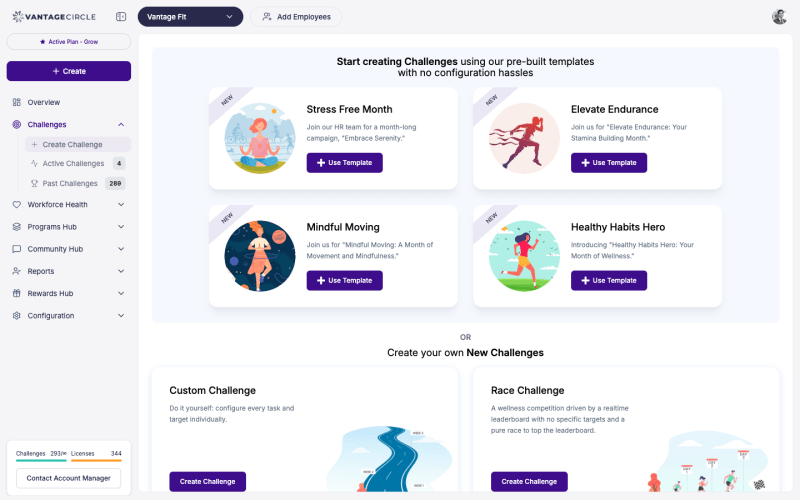
- Go to Create Challenge in the sidebar.
- Select Custom Challenge as the format.
Step 2: Basic Details
Fill in the challenge identity:
- Challenge name — what employees will see (e.g., “Spring Wellness Challenge 2026”).
- Description — explain what the challenge is about and what employees should expect.
- Challenge image — the banner image that appears on the challenge card.
- Start date and end date — defines the overall challenge duration.
- Privacy — Public (visible to all employees) or Private (visible only to the target audience).
Tip: Choose a name that is specific and motivating. “April Steps Challenge” is better than “Challenge #3” — employees are more likely to engage when the purpose is clear from the name.
Step 3: Add Weeks with Themes
This is what makes the Custom format unique. Each week gets its own identity:
- Click Add Week to create your first week.
- For each week, configure:
- Week name — e.g., “Week 1: Move More” or “Mindfulness Week”.
- Theme logo — a custom image for this week’s theme.
- Theme color — a brand color for the week’s visual styling.
- Repeat for each week in your challenge.
The number of weeks is determined by your start and end dates. You can name and theme each week independently.
Note: Weekly themes are what employees see in the app. A well-themed challenge (e.g., “Move”, “Nourish”, “Rest”, “Thrive”) feels like a curated program rather than just a points race.
Step 4: Add Tasks Per Week
Within each week, add one or more tasks:
- Click on a week to expand it.
- Click Add Task within that week.
- For each task, configure:
- Task type — choose from the available types (Steps, Water, Distance, Active Minutes, Meditation, Custom Activity, Adherence, Content, and more — the exact list depends on your company’s configuration).
- Target value — the goal employees need to hit (e.g., 10,000 steps, 8 glasses of water).
- Daily or weekly mode:
- Daily mode — “Hit 5,000 steps on at least 4 days this week.”
- Weekly mode — “Walk a total of 35,000 steps this week.”
- Points — how many leaderboard points this task is worth.
- Drag and drop tasks to reorder them within a week.
- Repeat for every week.
You can have different tasks in different weeks. For example:
| Week | Theme | Tasks |
|---|---|---|
| Week 1: Move | Steps + Active Minutes | |
| Week 2: Nourish | Water + Meal Logging + Content Article | |
| Week 3: Rest | Sleep + Meditation | |
| Week 4: Thrive | Steps + Water + Adherence Check-in |
Tip: You can add multiple tasks per week without conflicts. Unlike some formats, Custom Challenges allow any combination of task types within the same week.
Step 5: Configure Scoring
Set how points work across the challenge:
- Points per task — each task has its own point value, set in Step 4.
- Score caps — for non-step tasks, employees earn points up to 100% of the target. Going over the target does not earn extra points. Steps are capped at 25,000 per day by default (this cap can be customized per challenge by your Vantage Fit account manager).
- Total score — the sum of points earned across all tasks and all weeks.
Note: Employees can see their score breakdown per task and per week by tapping their row on the leaderboard. Design your point values so that no single task dominates the total score — this encourages balanced participation.
Step 6: Team Configuration (Optional)
If you want team-based competition:
- Toggle Enable Teams on.
- Set the maximum team size (e.g., 5 members per team).
- Choose who creates teams:
- Admin-created — you create teams from the dashboard (individually or via CSV).
- Employee-created — employees form their own teams in the app (if enabled for your company).
- Team score = average of all team members’ individual scores.
Tip: Team challenges drive higher engagement because of social accountability. A team size of 4-6 works well — large enough for variety, small enough that every member’s effort matters.
Step 7: Set Target Audience
Choose who can see and join the challenge:
- All employees — everyone in your company.
- Filtered — restrict by country, city, department, gender, age range, language, or health risk code.
When you apply any filter, the challenge is automatically marked as Private.
Step 8: Certificates (Optional)
Enable auto-generated certificates for participants who complete the challenge:
- Toggle Enable Certificates on.
- Customize the certificate:
- Signature image — upload a digital signature.
- Signer name and designation — e.g., “Jane Smith, VP of Human Resources”.
- Company logo — appears on the certificate.
- Seal image — an optional official seal.
- Custom description — personalized text on the certificate.
- Certificates are automatically generated and distributed when the challenge ends.
Step 9: Review and Publish
- Review all settings — dates, weeks, tasks, teams, audience, certificates.
- Click Publish.
- The challenge appears in employees’ Upcoming tab and moves to Ongoing on the start date.
Tip: You can edit most challenge details after publishing. You can also reschedule, force start, or stop a challenge from the Manage Challenge page.
After Publishing
- Add participants — search and add individuals, or bulk add via CSV.
- Send invitations — email invites to targeted employees.
- Monitor the leaderboard — track engagement in real-time.
- Send notifications — nudge participants during the challenge.
Best Practices
- Plan your themes before creating. Sketch out your weekly themes and task combinations on paper first. A coherent narrative (Move → Nourish → Rest → Thrive) is more engaging than random tasks.
- Mix task types. Combining steps with mindfulness, content, and hydration keeps the challenge fresh and accessible to employees at different fitness levels.
- Keep targets achievable. A target that 60-70% of participants can hit is ideal. Too hard and people drop off; too easy and there is no motivation.
- Use daily mode for habits, weekly mode for effort. Daily mode (“hit target on X days”) builds consistency. Weekly mode (“accumulate X total”) rewards sustained effort.
Need more help? Contact your Vantage Fit account manager or email support@vantagecircle.com.
Related articles: