Managing who is in a challenge is straightforward. You can add participants one at a time, in bulk, or let the system handle it automatically with target audience filters.
Adding Participants Individually
- Go to Challenges and open the challenge you want to manage.
- Click Manage to open the Manage Challenge page.
- Navigate to the Participants section.
- Use the search bar to find an employee by name or email.
- Click Add next to the employee’s name.
- The employee is immediately enrolled and will see the challenge in their app.
Adding Participants in Bulk via CSV
For adding many participants at once:
- On the Manage Challenge page, go to the Participants section.
- Click Bulk Add or Upload CSV.
- Prepare a CSV file with employee email addresses (one per row).
- Upload the file.
- Review the preview — the system will flag any emails that don’t match existing employees.
- Confirm the upload.
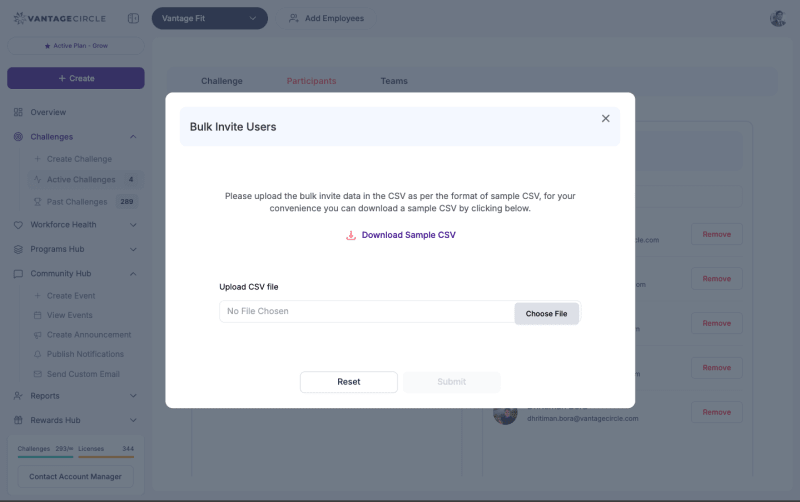
Tip: You can download a template CSV from the upload page to make sure your file format is correct.
Removing Participants
- On the Manage Challenge page, go to the Participants section.
- Search for the participant you want to remove.
- Click Remove next to their name.
- Confirm the removal.
The participant will no longer see the challenge in their app. Their historical data (steps, scores) is retained in the system for reporting purposes.
Note: Removed participants will not receive any further notifications for that challenge.
Auto-Enrollment via Target Audience
Instead of manually adding participants, you can set a Target Audience during challenge creation. The system will automatically enroll employees who match your filters (department, country, age range, etc.).
There are two auto-enrollment modes:
- Enroll immediately: The system adds all matching employees right away.
- Enroll when active: The system waits until an employee becomes active in the app, then enrolls them.
For full details, see How Do I Set a Target Audience for a Challenge?.
Late Joining
Participants who are added after a challenge has already started can still join. Here is how it works:
- Their score is calculated from their join date, not from the challenge start date.
- They will not retroactively earn points for weeks or tasks they missed.
- They appear on the leaderboard immediately and can start competing.
This makes it safe to add new participants mid-challenge without giving anyone an unfair advantage.
Re-Adding a Participant Who Quit
If an employee voluntarily leaves a challenge (quits from the app) and you want to bring them back:
- Search for the employee in the Participants section.
- Click Add — the system allows re-enrollment even after a quit.
- The employee is back in the challenge and can resume participating.
Note: Their previous score data may or may not carry over depending on the challenge type. In most cases, they start fresh from the re-join date.
Quick Reference
| Action | How |
|---|---|
| Add one participant | Search by name/email → Click Add |
| Add many participants | Upload CSV with emails |
| Remove a participant | Search → Click Remove |
| Auto-enroll by filters | Set Target Audience during challenge creation |
| Late join scoring | Score counts from join date |
| Re-add after quit | Search and add again |
Need more help? Contact your Vantage Fit account manager or email support@vantagecircle.com.
Related articles: