Creating a challenge takes 5-10 minutes from the Admin Dashboard. You’ll choose a format, set dates, add tasks with targets, configure teams (optional), set a target audience, and publish.
Step 1: Choose a Format
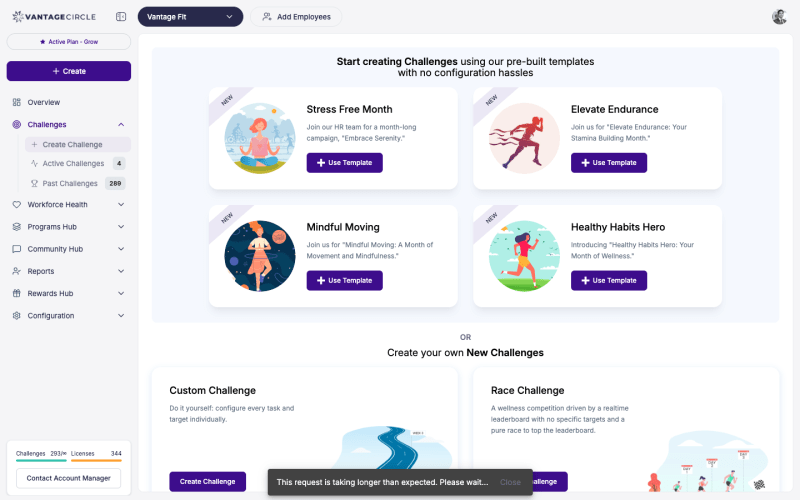
Go to Create Challenge in the sidebar. Choose your format:
| Format | Best For | Complexity |
|---|---|---|
| Custom Challenge | Multi-week programs with varied tasks | Most flexible — weekly themes, multiple task types |
| Race Challenge | Simple step competitions | Simplest — one task, pure leaderboard |
| Journey Challenge | Visual milestone-based challenges | Engaging — employees progress through a map |
| Streak Challenge | Building daily habits | Simple — hit a daily target, maintain streak |
| E-Marathon | Virtual marathon events | Steps converted to distance on leaderboard |
Tip: Not sure? Start with a Race Challenge for your first time — it’s the simplest to set up. Use Custom Challenge when you want weekly themes and multiple task types.
You can also start from a pre-built template — go to the template library for ready-made configurations.
Step 2: Basic Details
- Challenge name — what employees will see
- Description — explain the challenge purpose and rules
- Challenge image — banner image for the challenge card
- Start date and end date — when the challenge runs
- Privacy — Public (all employees see it) or Private (only target audience sees it)
Step 3: Configure Tasks
Add one or more tasks with targets. Over a dozen task types are available (the exact number depends on your company’s configuration):
Popular task types:
- Steps — e.g., “Walk 10,000 steps daily, 5 days this week”
- Water — e.g., “Drink 8 glasses of water daily”
- Distance — running, walking, or cycling distance
- Active Minutes — time spent exercising
- Meditation/Mindfulness — minutes of mindful practice
- Custom Activity — your branded loggable activities
- Adherence — custom habit check-ins
- Content — watch a video or read an article
For each task, set:
- Target value (e.g., 10,000 steps)
- Daily or weekly mode — “Hit 5K steps on 4 days” (daily) vs “Walk 35K steps this week” (weekly cumulative)
- Points — leaderboard score for completing the task
Note: For Custom Challenges, you can set different tasks per week with different themes, logos, and colors for each week.
Step 4: Team Settings (Optional)
- Enable teams — toggle on if you want team competition
- Maximum team size — how many members per team
- Teams can be created by you (admin) or by employees (if enabled for your company)
- Team score = average of individual scores
Step 5: Target Audience
Choose who can see and join this challenge:
- All employees — everyone in your company
- Filtered — restrict by country, city, department, gender, age range, language, or health risk code
Note: When you apply any audience filter, the challenge is automatically marked as Private.
Step 6: Certificates & Rewards (Optional)
- Enable certificates — auto-generated on challenge completion
- Customize certificate — your signature, logo, seal, and description
- Point rewards — if your company has rewards enabled, set point values per task
How Points Are Distributed
When the challenge is live, points are credited automatically based on what you configured at setup:
- Per-task completion — employees earn points each time they complete a defined task (daily activity targets, content reads, quiz answers, manual logs, etc.)
- Milestone checkpoints — Journey challenges award points at each milestone the employee reaches. See How Do I Create a Journey Challenge?.
- Final leaderboard positions — you can also award bonus points to top finishers, configured per challenge.
Points appear in each employee’s Vantage Points wallet as soon as they’re credited. For ad-hoc awards outside a challenge, see How Do I Upload Points to Employees?.
Step 7: Review & Publish
Review all settings and publish. The challenge will appear in employees’ Upcoming tab and move to Ongoing on the start date.
Tip: You can edit most challenge details after creation. You can also reschedule, force start, or stop a challenge from the Manage Challenge page.
After Publishing
- Add participants — search and add individuals, or bulk add via CSV
- Send invitations — email invites to employees
- View leaderboard — monitor progress in real-time
- Send notifications — nudge participants during the challenge
Need more help? Contact your Vantage Fit account manager or email support@vantagecircle.com.
Related articles: