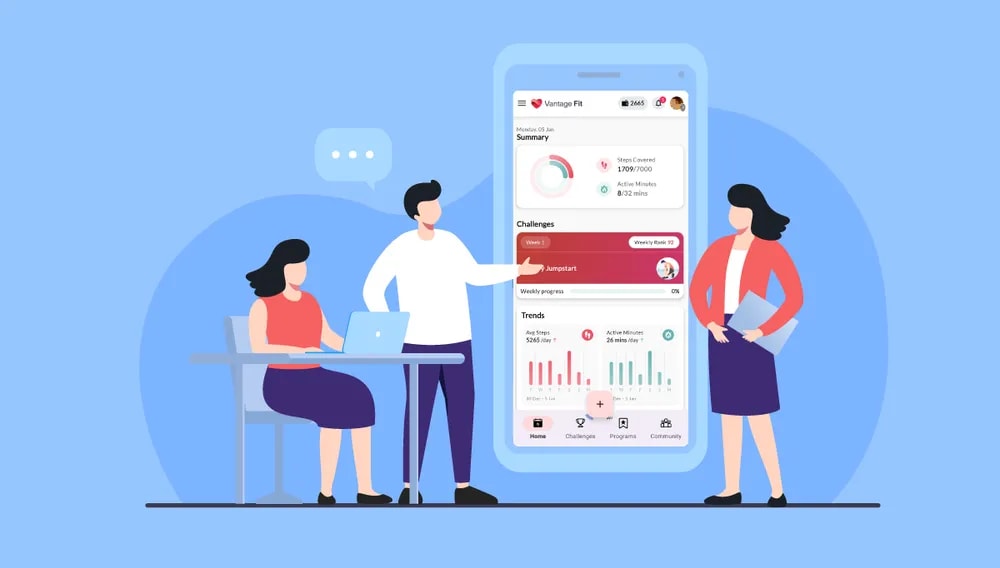

After installing the Vantage Fit app on your mobile device, you are now all set to participate in the various wellness challenges that your organization may be running.
What’s more, is that Vantage Fit lets you seamlessly integrate your app with a wide array of supported wearable devices available in the market. With support for devices such as Apple Watch, FitBit, Google Wear OS, Garmin, and many more, Vantage Fit creates a highly personalized user experience.
You don’t have to worry about tracking your steps and activities again and again. If you have a wearable device, set it up with Vantage Fit, and you’re good to go.
Here’s how you can sync your wearable device with the Vantage Fit app -
For Apple Watch Users
Your Apple Watch will work perfectly with Vantage Fit if you have connected it to the Health app on your phone.
Vantage Fit uses data from Apple Health as it collects steps and activity data from your iPhone and Apple Watch.
For FitBit Users
To sync your Fitbit watch with Vantage Fit, all you need to do is choose the Fitbit option when it asks to connect your wearable device as you log in to the Vantage Fit app for the first time.
Fitbit automatically syncs with our servers, and any activity you complete will be reflected in the Vantage Fit app automatically.
For Mi Band users
Step 1 - Pair your Mi Band with the Mi Fit app on your phone.
Step 2 - In the app, tap on the profile section below and select the add accounts option.
Step 3 - Select Google Fit from the option and tap on the account you’re using for Vantage Fit.
Step 4 - Once done, go to the Google Fit and select your account for Vantage Fit.
Step 5 - Go to the profile section and tap on settings.
Step 6 - There select manage connected apps and then check if both Mi Fit & Vantage Fit are displayed under the same account.
Step 7 - If it is displayed, you have successfully paired your Mi Band with the Vantage Fit app.
Steps not displaying after connecting your wearable?
If your steps are not being tracked in the Vantage Fit app, your mobile device may not be permitting the app to synchronize your steps. To solve that problem, here is a step-by-step guide on syncing the Vantage Fit app with your mobile device for a seamless experience -
For IOS Users
Step 1 - Open the phone settings on your device and select Privacy.
Step 2 - Under Privacy, select Health and navigate to Vantage Fit
Step 3 - Ensure that all the buttons are toggled “On” or highlighted in green.
For ASUS Mobile
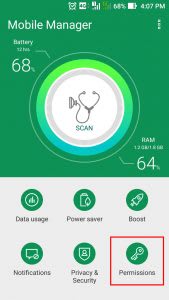
Step 1 - Open Mobile Manager which is present in your device’s Home Screen
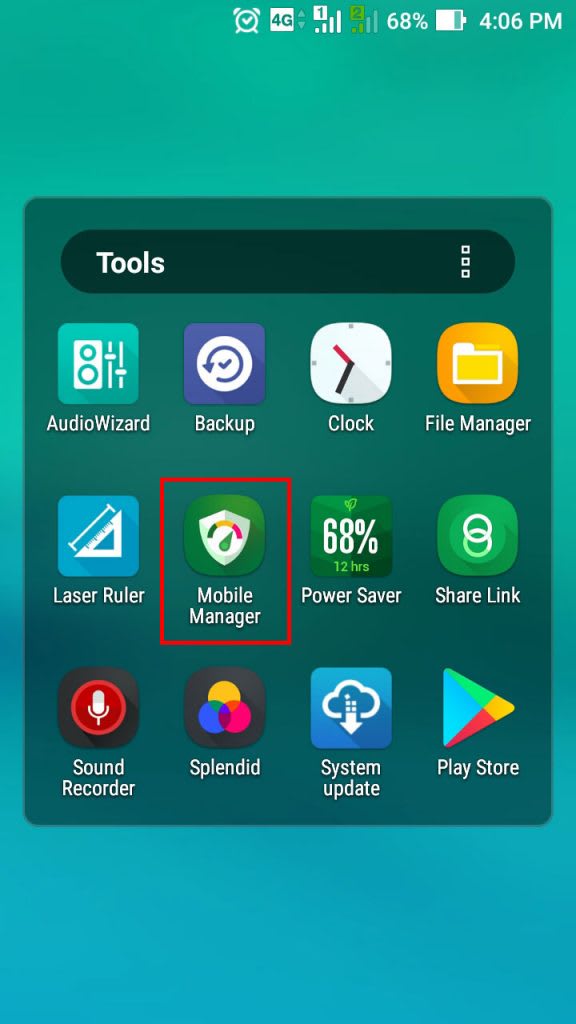
Step 2 - Click on the Permissions button.
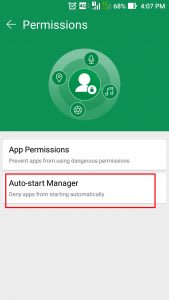
Step 3 - Click on Auto-Start Manager
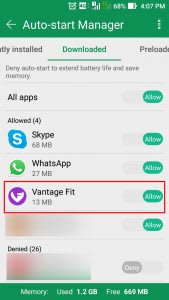
Step 4 - On the Downloaded appsection, go to the Vantage Fit app and click on Allow
For Xiaomi Mobile
Step 1 - Go to Settings in your mobile

Step 2 - Tap on Installed Apps

Step 3 - Navigate to Downloaded section & select Vantage Fit

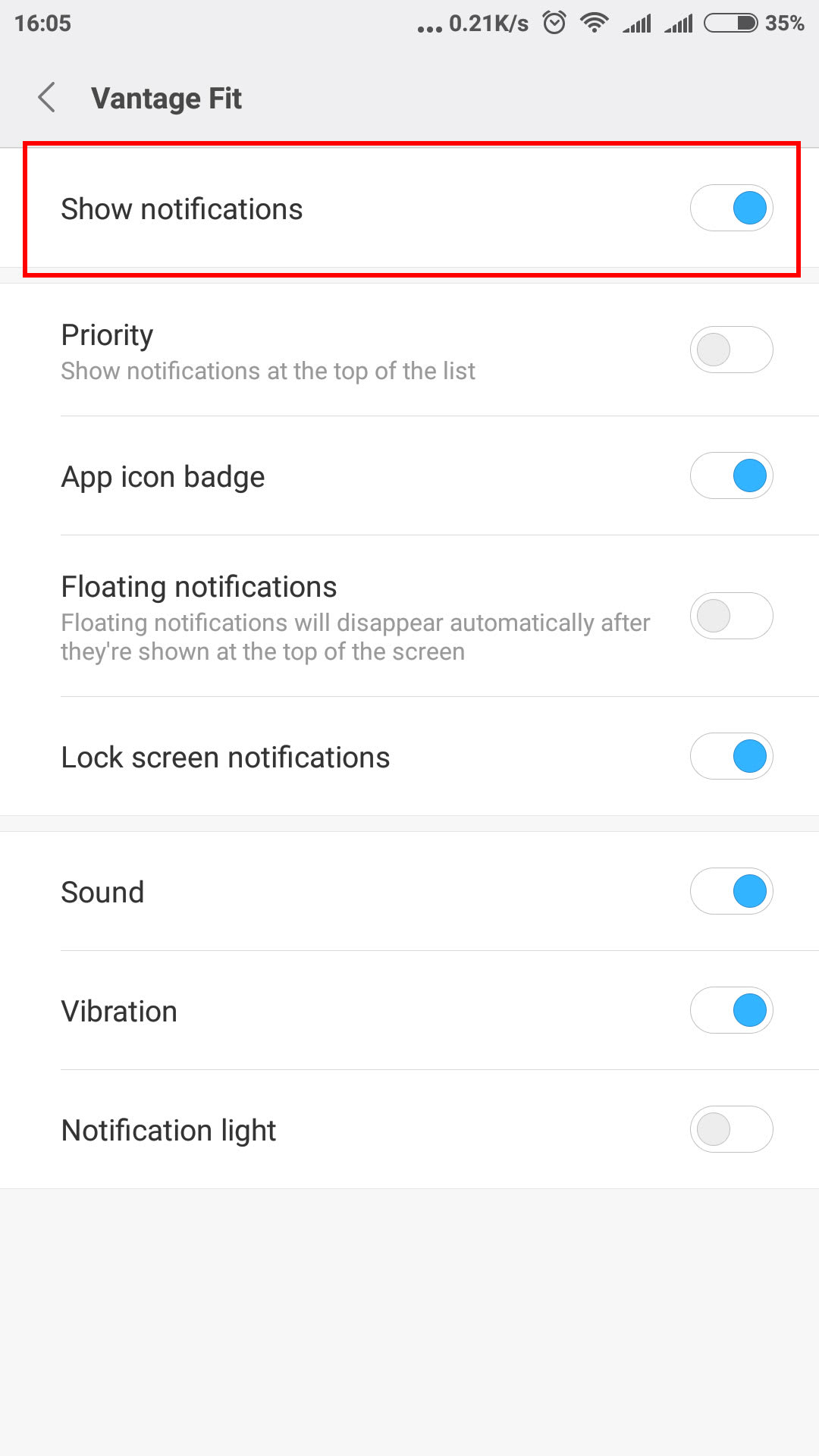
Step 4 - Tap on Show Notifications option in the App info page

Step 5 - Enable Show notifications
For Vivo Mobile
Step 1 - Go to I Manager on your mobile
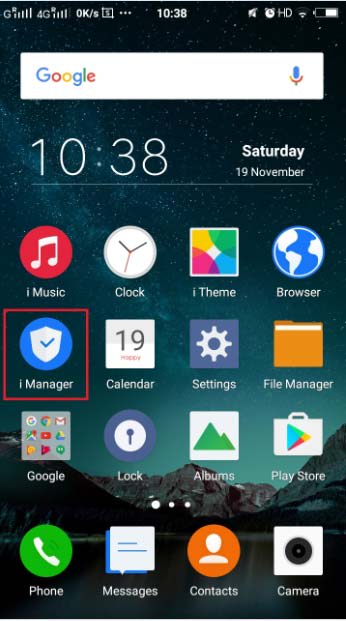
Step 2 - Tap on App Manager icon
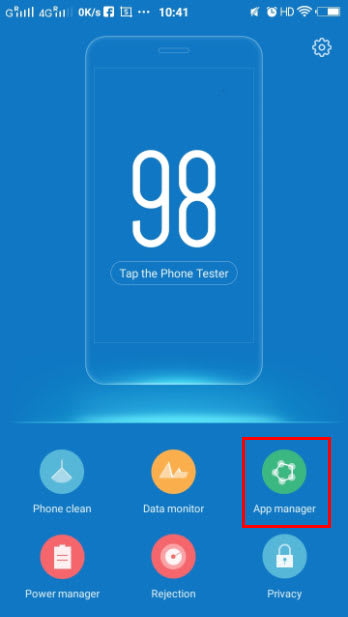
Step 3 - Select Autostart manager
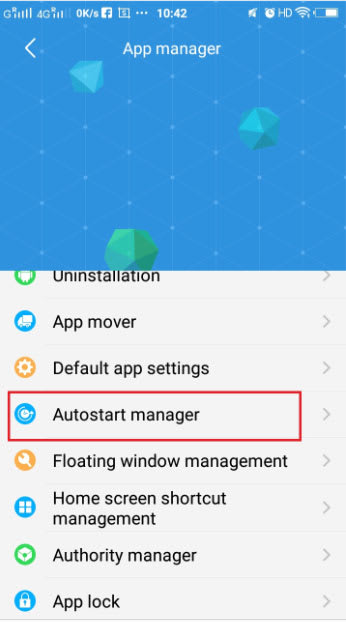
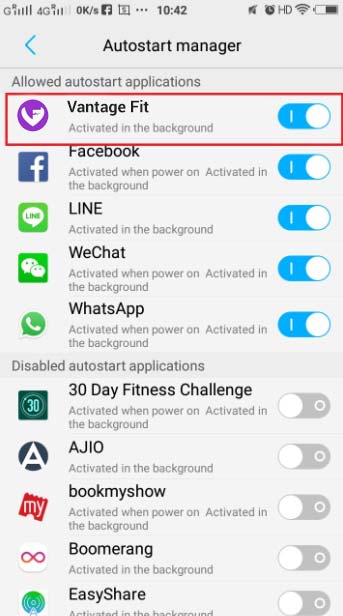
Step 4 - Enable Autostart for Vantage Fit
Step 5 - Now go to Uninstallation option in App manager.
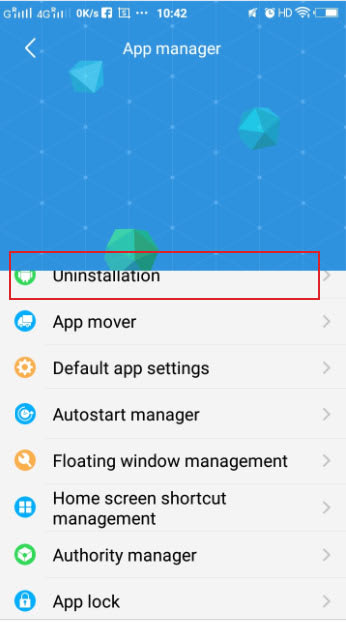
Step 6 - Select Vantage Fit
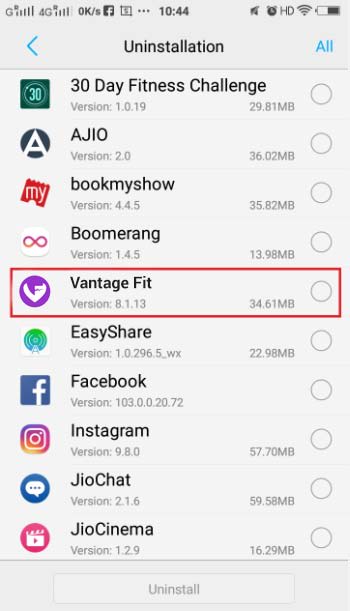
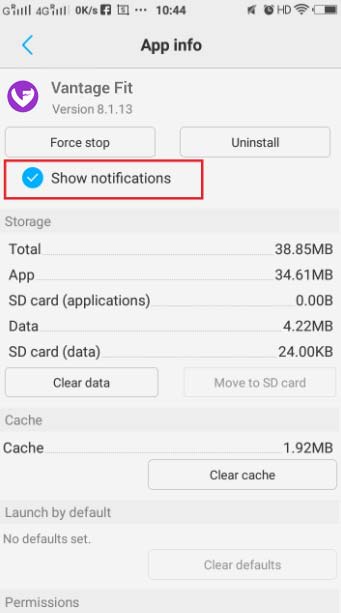
Step 7 - Enable Show notifications
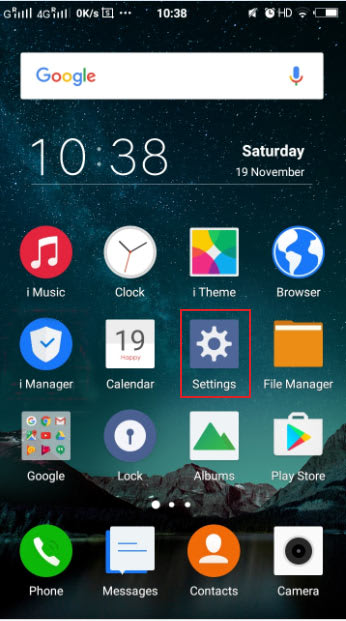
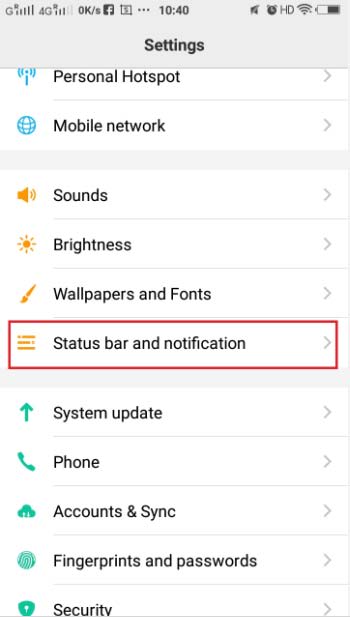
Step 8 - Go to Settings
Step 9 - Tap on Status bar and notification
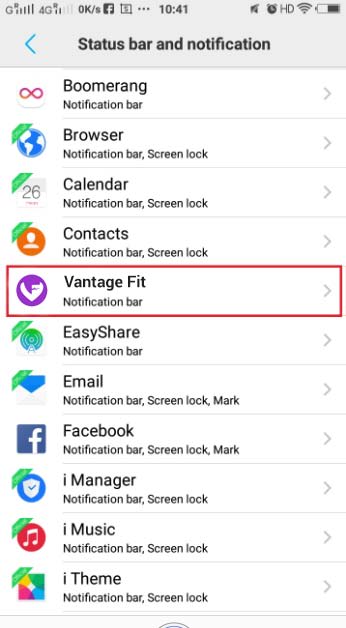
Step 10 - Select Vantage Fit
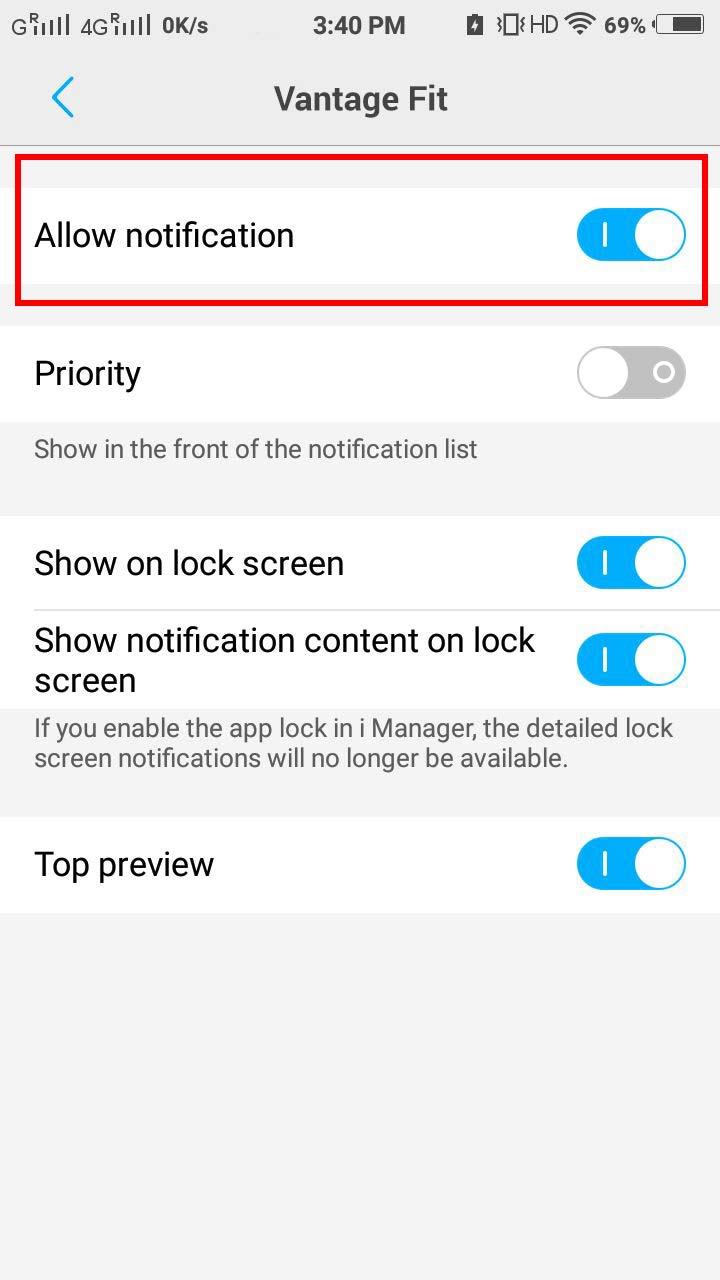
Step 11 - Enable Allow notification
Tips for a seamless Vantage Fit experience
Once your device is synced, here are a few things to keep in mind to ensure your steps and activities are tracked accurately.
Keep Bluetooth enabled — Most wearables rely on Bluetooth to sync data with your phone. Keeping it on ensures your activity data transfers automatically throughout the day without any manual intervention.
Open the app regularly — Some devices only push data to Vantage Fit when the app is open or running in the background. A quick daily check-in helps ensure your step count is always up to date.
Check battery saver settings — Many Android phones aggressively kill background apps to preserve battery. If Vantage Fit is being closed by your phone's battery optimizer, your steps may not sync. Go to your phone's battery settings and whitelist Vantage Fit to run unrestricted in the background.
Keep the Vantage Fit app updated — Updates often include fixes for sync issues with newer wearable firmware. Check the App Store or Google Play regularly to make sure you are on the latest version.
Re-sync if steps are missing — If you notice a gap in your step count, try disconnecting and reconnecting your wearable from within the Vantage Fit app. This forces a fresh sync and usually resolves minor discrepancies.
We hope you have a seamless experience with Vantage Fit.
Share