The Reports section in your admin dashboard gives you visibility into employee enrollment, activity, points, and challenge performance. You can filter, search, and export data as CSV.
Accessing Reports
- Log in to the Vantage Fit Admin Dashboard.
- Go to Reports in the left sidebar.
- Select the report type you want to view.
Employee Report
The primary report for understanding your employee base.
- Go to Reports → Employee Report.
- View the list of all employees with their enrollment status.
Enrollment Statuses
| Status | Meaning |
|---|---|
| Active | Employee has logged in and is using the app. |
| Inactive | Employee has an account but has not logged in recently. |
| Dormant | Employee has not used the app for an extended period. |
Filtering and Searching
- Search by employee name or email.
- Filter by department — see employees from a specific department.
- Filter by country — narrow down to a specific region.
- Combine filters to get precisely the view you need.
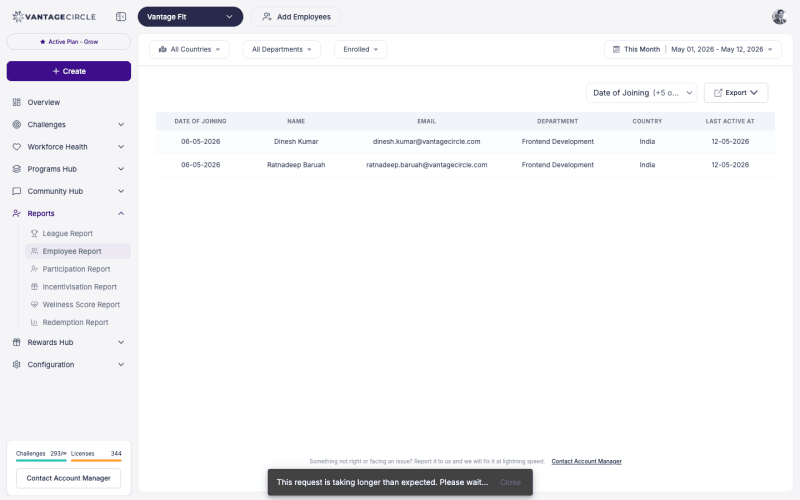
Exporting
Click Export CSV to download the full employee report. The CSV includes:
- Employee name and email.
- Department and country.
- Enrollment status.
- Last active date.
- Other relevant employee data.
Tip: Export the employee report monthly to track enrollment growth and identify dormant users who may need re-engagement.
Transaction Report
View all points transactions across your company.
- Go to Reports → Transaction Report.
- See a log of all points earned, awarded, and deducted.
- Filter by date range, employee, or transaction type.
- Export as CSV for record-keeping.
This report is useful for auditing points distribution and ensuring fairness.
Redemption Report
Track how employees are spending their earned points.
- Go to Reports → Redemption Report.
- View gift card redemptions and other rewards claimed.
- Filter by date range or employee.
- Export as CSV.
Tip: Use the Redemption Report to understand which rewards are most popular. This helps you plan future reward offerings.
Challenge Leaderboard
View performance data for individual challenges.
- Go to Challenges and open a specific challenge.
- Click Manage to open the Manage Challenge page.
- Navigate to the Leaderboard section.
- View rankings by score, steps, or team.
- Click Export CSV to download the leaderboard data.
The leaderboard export includes:
- Participant name and email.
- Total score and ranking.
- Step count.
- Per-task breakdown (for Custom challenges).
- Team name (if applicable).
Best Practices
- Check Employee Report regularly. Monthly reviews help you catch declining engagement early.
- Export before challenge rewards. Always download the final leaderboard CSV before distributing prizes to have a permanent record.
- Use filters to segment. Compare engagement across departments or countries to identify areas that need attention.
- Cross-reference reports. Compare the Employee Report (enrollment) with Transaction Report (activity) to find enrolled-but-inactive employees.
- Share insights with leadership. Export data and create simple summaries for your wellness program stakeholders.
Need more help? Contact your Vantage Fit account manager or email support@vantagecircle.com.
Related articles: