The Configuration section of your admin dashboard lets you customize how Vantage Fit looks and works for your employees. Some settings are self-serve, while others require your Vantage Fit account manager.
Accessing App Settings
- Log in to the Vantage Fit Admin Dashboard.
- Go to Configuration in the left sidebar.
- Click Settings.
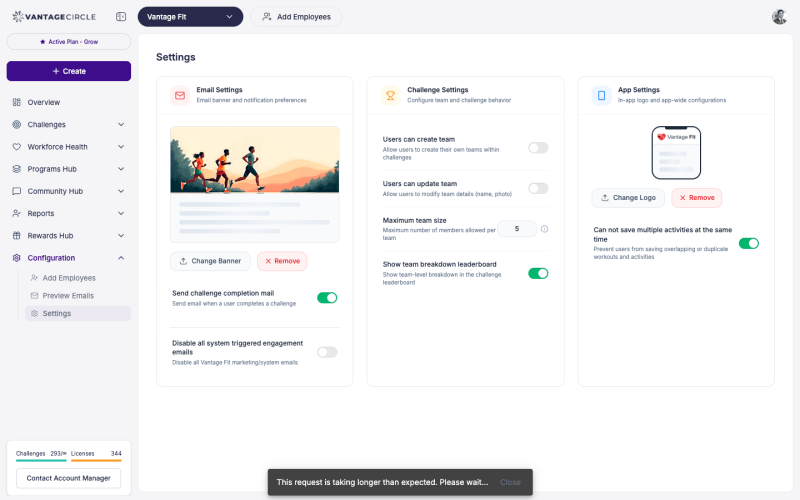
Self-Serve Settings
These settings you can change directly from the dashboard.
Feature Toggles
Toggle specific features on or off for your company:
- Wellness Score — show or hide the wellness score for employees (if enabled at the platform level).
- Leagues — enable or disable league competitions.
- Other feature settings as available in your configuration.
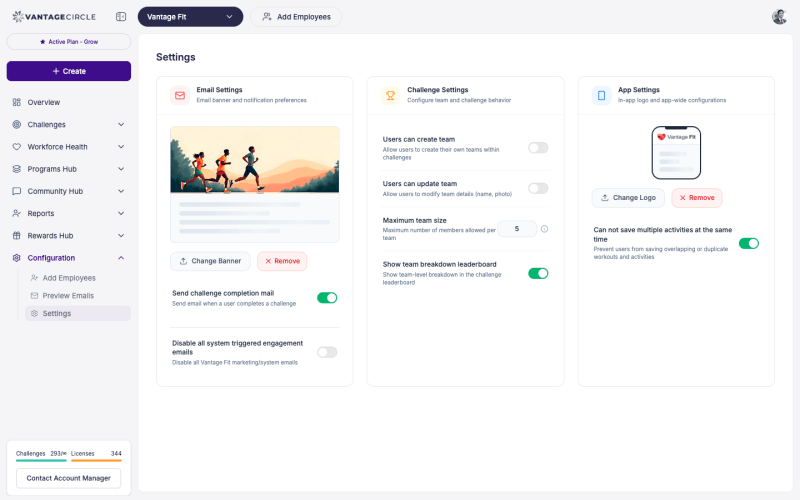
Custom App Logo
Upload your company’s logo to personalize the app experience:
- In Settings, find the App Logo section.
- Click Upload and select your logo file.
- The logo appears in the app header and welcome screens for your employees.
Tip: Use a square or landscape logo with a transparent background for the best result. Recommended size is at least 200x200 pixels.
Email Banner
Customize the banner image used in system emails:
- In Settings, find the Email Banner section.
- Upload a banner image.
- This banner appears at the top of all system emails sent to your employees.
Tip: Use a banner that matches your company’s wellness branding. Keep it clean and not too tall — 600x200 pixels works well.
Brand Customization
Adjust brand colors and styling to match your company’s identity. The app and emails will use your company’s colors for buttons, accents, and highlights.
Settings That Require Your Vantage Fit Account Manager
Some settings can only be changed by your Vantage Fit account manager. Contact them to request changes to:
| Setting | Description |
|---|---|
| SSO (Single Sign-On) | Enable or configure SSO login for your company. |
| Lite Mode | A simplified app experience with fewer features, designed for companies that want a streamlined rollout. |
| Email Toggles | Enable or disable specific system email types (Welcome, Weekly Summary, etc.). |
| Leagues | Full league configuration and setup. |
| Wellness Score | Platform-level enablement of the Org Wellness Score feature. |
| Training Plans | Enable and configure structured training programs. |
| Manual Steps | Allow or disallow employees to manually enter step counts. |
| Marketplace | Enable the rewards marketplace for your company. |
| Active Minutes | Configure active minutes tracking and thresholds. |
| Team Creation by Employees | Allow employees to create their own teams (vs. admin-only team creation). |
Note: These settings are managed at the operations level to ensure proper configuration and avoid conflicts. Your account manager can typically process changes within 1-2 business days.
Previewing Changes
After making changes to settings:
- Logo and banner changes — take effect immediately. Open the app or trigger a test email to verify.
- Feature toggles — take effect after the employee refreshes the app or reopens it.
- Ops-level changes — your account manager will confirm when the change is live.
Best Practices
- Set up branding early. Configure your logo, banner, and colors before your first challenge launch so employees get a branded experience from day one.
- Review settings quarterly. As your wellness program matures, you may want to enable additional features.
- Test before rolling out. After changing a feature toggle, check the employee app yourself to confirm the change looks and works as expected.
- Document your configuration. Keep a record of which features are enabled and any custom settings so new admins can understand the setup.
Need more help? Contact your Vantage Fit account manager or email support@vantagecircle.com.
Related articles: