An ergonomically correct workstation is a desk setup where your chair, monitor, keyboard, and lighting are arranged to support your body’s natural posture. Along with that, it should reduce strain on your neck, back, wrists, and eyes. It typically involves an adjustable chair, a monitor at eye level, and equipment placed within easy reach, whether you work from an office or from home.
Poor workstation setup is a common reason behind back pain, wrist strain, and fatigue. And a properly arranged workstation supports better posture and comfort throughout the day. Getting these basics right is also the starting point many workplace wellness programs, including Vantage Fit, encourage before introducing movement challenges and activity tracking.
How Do You Set Up an Ergonomically Correct Workstation?
Follow this 13-step checklist to set up your workstation correctly:
- Maintain a healthy posture
- Choose the right chair
- Adjust your desk height
- Set the right monitor height and distance
- Use an external, ergonomic keyboard
- Use a mouse that fits your hand
- Use a laptop stand
- Ensure good lighting
- Use a document holder
- Take breaks and move around
- Keep frequently used objects close
- Position your telephone correctly
- Add stress-reducing extras
We’ll walk through each of these in detail below.
1. Maintain a Healthy Posture
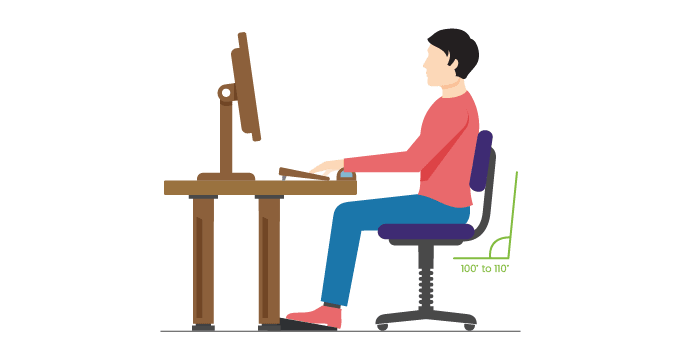
Maintaining a healthy posture at work is important for your comfort and well-being. Sit with your feet flat on the floor, your hips slightly higher than your knees, and your knees at a 90-degree angle.
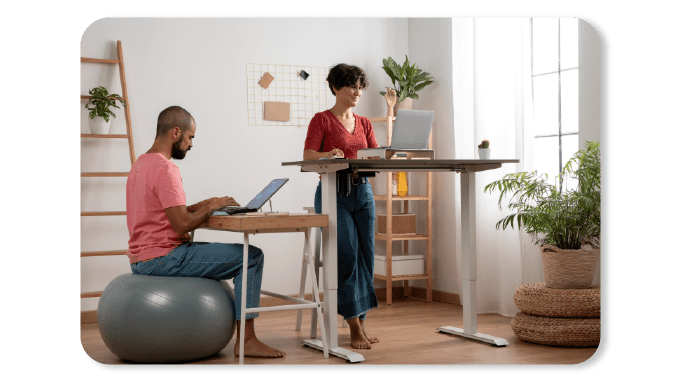
Keep your back straight and supported by your chair’s backrest, with your shoulders relaxed and elbows close to your body at a 90-degree angle.
Position your computer screen at eye level, roughly an arm’s length away, to lessen neck strain. Take breaks often. Stretch to avoid feeling tired and stiff.
These 90-degree guidelines are a solid default to start from. If you find yourself leaning back slightly through the day, that’s fine too. Head over to the FAQ section below on why a more reclined posture can work just as well over a full shift.
Read more: How To Develop A Proper Sitting Posture At The Office
2. Choose the Right Chair
Choosing the right office chair is crucial for a comfortable and ergonomic workstation. Find a chair to adjust so your feet touch the floor, and your knees form a 90-degree angle.
- Ensure the chair has adequate lumbar support to maintain the natural curve of your spine.
- Ensure the chair’s armrests can move up and down to keep your elbows at a 90-degree angle.
- Keep your forearms parallel to the ground and your wrists in a neutral position.
- Also, the seat should have enough depth for a couple of inches of space between the back of your knees and the front edge of the seat.
- Set the chair height to a point where your feet fall flat on the floor. You can also use a footrest or a box to keep your feet flat parallel to the floor.
- Also, choose a chair with a stable base and smooth-rolling casters for easy movement.
3. Adjust your Desk Height
Adjusting your desk height is important for ergonomic comfort. Adjust your desk height to ensure that your elbows form a 90-degree angle while typing. Keep your wrists straight and adequately supported.
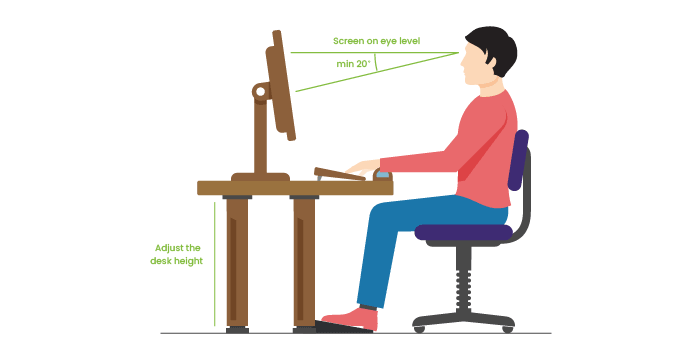
Ensure your monitor is at eye level to reduce strain on your neck, with the screen about arm’s length away. Keep your keyboard and mouse nearby to avoid stretching and strain on your shoulders and arms.
4. Setting the Right Monitor Height and Distance
Setting the right monitor height and distance is key for comfortable working. Per OSHA’s Computer Workstations eTool, the monitor should be positioned at or slightly below eye level, with a viewing distance of 20 to 40 inches.
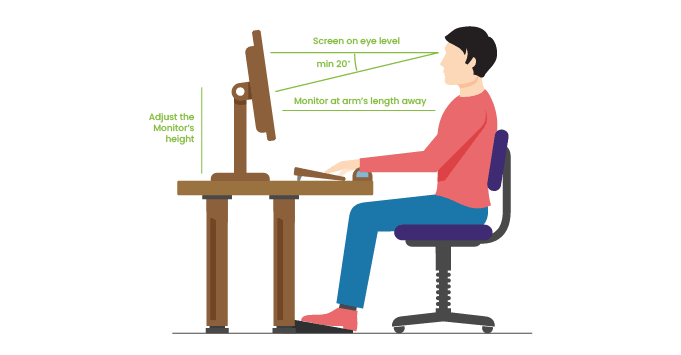
Sit within that 20-to-40-inch range to reduce eye strain and tilt the monitor slightly backward to minimize glare. Adjust the monitor’s distance and angle to prevent excessive neck and shoulder strain.
If you wear bifocals, tilt your head back to see the monitor. OSHA also recommends lowering the monitor or raising your chair so the screen center sits 15 to 20 degrees below eye level, tilting the screen slightly up toward your face if needed.
5. Use an External, Ergonomic Keyboard
Using an external, ergonomic keyboard is essential for comfortable and healthy typing. Position the keyboard so your wrists are straight and supported, with the keyboard at elbow height or slightly below.
Search for a keyboard that is split and adjustable to help your hands stay in a natural position and lower strain. Keep the keyboard close to the edge of the desk to maintain proper posture and minimize reaching.
What is the Ergonomically Correct Height for a Keyboard?
The keyboard should be positioned at elbow height or slightly below to ensure the wrists are straight and supported.
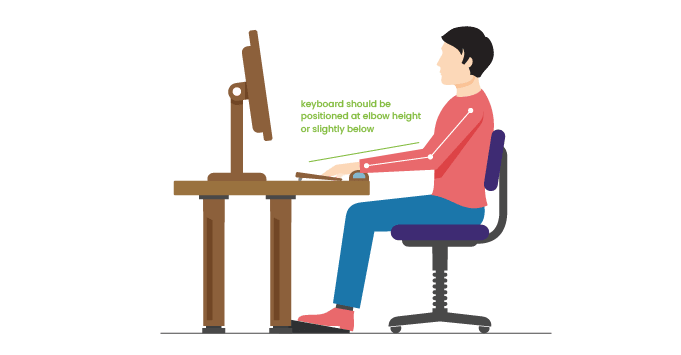
Keyboard trays make it easier to reach your keyboard and mouse by lowering them. Good ones let you change how they’re positioned and angled. If you’re shorter, think about getting a keyboard tray.
Why is an Ergonomic Keyboard Important?
An ergonomic keyboard promotes a natural hand position, reducing strain and discomfort during typing.
How should the Keyboard be Positioned?
Keep the keyboard close to the edge of the desk to maintain proper posture and minimize reaching.
What Features should an Ergonomic Keyboard have?
Find a keyboard that can be split and tilted to suit various hand positions and preferences.
6. Use a Mouse that Fits your Hand
Using a mouse that fits your hand is crucial for ergonomic comfort. Choose a mouse that allows your hand to rest comfortably with your fingers relaxed and your wrists in a neutral position.

Look for a mouse with a shape and size that matches the natural curve of your hand to reduce strain. Keep the mouse near the keyboard to avoid stretching, and keep your arms and wrists properly aligned.
What is the Ergonomically Correct Size for a Mouse?
Allow your fingers to rest naturally in your hand without straining or squeezing the mouse.
How should the Mouse be Positioned?
Position the mouse close to the keyboard to minimize reaching and maintain proper arm and wrist alignment.
7. Use a Laptop Stand
Using a laptop stand is essential for maintaining proper ergonomic posture while using a laptop. A laptop stand that can be adjusted raises the screen to eye level, helping to reduce neck strain and prevent eye discomfort.
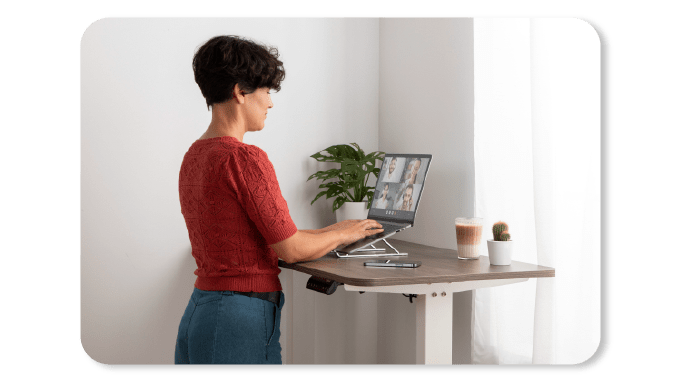
This makes it easier to see the screen comfortably. It also encourages better posture when using the laptop for a long time. Adjust the laptop stand to ensure the screen is at eye level. Use an external keyboard and mouse for optimal ergonomic comfort.
8. Ensure Good Lighting
Ensuring good lighting is crucial for a comfortable and productive workspace. Position your desk or work area near natural light sources to reduce eye strain. Use adjustable task lighting to supplement natural light and avoid glare on screens.
Position the light source at a 30 to 50-degree angle from your line of sight and adjust the brightness to suit your needs. Consider using indirect lighting to reduce harsh shadows and create a more evenly lit environment.
9. Document Holders
Using a document holder is beneficial for maintaining proper ergonomic posture while referencing documents. Put the document holder at the same height and distance as your computer screen. This helps reduce neck pain at work.
Choose a document holder with an adjustable angle to accommodate different viewing preferences. Keep the document holder beside or below your monitor to reduce eye and neck movement while typing.
10. Take Breaks and Move Around
Taking breaks and moving around is essential for maintaining overall well-being and productivity. Stand up and stretch every 30 minutes to relieve tension and improve circulation. Incorporate short walks or stretches into your break routine to prevent stiffness and promote blood flow.
LeAnn Smith, Health & Nutrition Coach and owner of Vibrant Life Source, put it plainly on the Vantage Fit Podcast:
"The human body is not intended to be sedentary. It is not intended to sit. In order for it to function properly, it must move — which is why we're seeing chronic back, shoulder, neck, and hip issues. That afternoon slump doesn't have to happen if we take a little break to go out, take the body out, start to move a bit."
— LeAnn Smith, Health & Nutrition Coach, Vibrant Life Source | Listen to the full episode

Change your posture often. Do different tasks during the day to lower the chance of getting hurt from the same thing repeatedly. Remember to blink frequently and focus on objects at varying distances to prevent eye strain.
11. Keep Frequently used Objects Close to you
Keep frequently used objects within arm’s reach to minimize reaching and twisting. Position your phone, mouse, and notepad close to your dominant hand to reduce strain and improve efficiency.
Avoid overreaching or twisting your body to reach for items, as this can lead to discomfort and potential injury. Organize your workspace so that commonly used items are easily accessible without excessive movement.
Read more: Importance of Workplace Hygiene and 5 Tips to Improve It
12. Telephone
Position the telephone within easy reach. Preferably on the side of your non-dominant hand to minimize strain when answering calls. If you need to spend a lot of time using your phone, you should use a headset or a speakerphone.
Using a headset or speakerphone to avoid holding the phone between your ear and shoulder reduces neck and shoulder tension. Adjust the phone’s volume to a comfortable level and take breaks between long phone calls to prevent discomfort.
13. Additional tips to help you reduce stress
Additional tips to help reduce stress include:
- Using noise-cancelling headphones to block out distractions.
- Incorporating scented candles or oil diffusers with calming scents like lavender.
- Keeping a houseplant nearby improves air quality and adds a touch of nature to your workspace.
- Practice deep breathing. Stay hydrated. Take short breaks. Practice mindfulness. This makes work more relaxed and productive.
Frequently asked questions
What is an ergonomically correct workstation?
An ergonomically correct workstation is a desk setup where furniture, equipment, and accessories are arranged to reduce musculoskeletal strain and injury. It supports natural body movements and minimizes repetitive stress, helping you stay comfortable and healthy whether you're in the office or at home.
What are the benefits of an ergonomically correct workstation?
An ergonomic workstation improves comfort by reducing physical strain, enhances productivity by promoting better posture and less fatigue, and lowers the risk of repetitive strain injuries and musculoskeletal disorders linked to prolonged desk work.
What are two key features of an ergonomic workstation?
Adjustable furniture, like a chair and desk that fit your body size, and proper equipment placement, positioning your monitor, keyboard, and mouse to support natural movement and reduce strain.
Is 90 degrees always the ideal sitting angle?
Not necessarily. While a 90-degree seated posture is common advice, Cornell University's CUErgo research finds a reclined posture of 100 to 110 degrees is often more sustainable and puts less pressure on the spine over a full workday.
How often should you take breaks at an ergonomic workstation?
Stand up and stretch roughly every 30 minutes, even with a well-adjusted setup. Short walks or stretches during breaks improve circulation and prevent the stiffness that comes from staying in one position too long.
Conclusion
In conclusion, creating an ergonomic workstation means making your workspace comfy and good for your health. By following the tips in this blog, you can set up your desk to help your body feel better and work better. Whether you’re at an office or home, thinking about ergonomics is important for staying healthy and doing your best work. So, adjust your chair, computer, and other stuff to fit you well. Your body will thank you, and you’ll feel more productive too.
Lastly, it is worth mentioning that a well-set-up desk supports the body and a positive work environment supports overall organizational growth.