Staying hydrated is a key part of your wellness routine. Vantage Fit makes it easy to track how much water you drink throughout the day with a simple tap-based counter.
How to Log Water
- Tap the Plus (+) button from any screen.
- Select Log Today’s Water Intake.
- Use the + and - buttons to adjust your intake. Each tap adds or removes 1 glass (250ml).
- Alternatively, type an exact amount directly if you prefer precision.
- Tap Save.
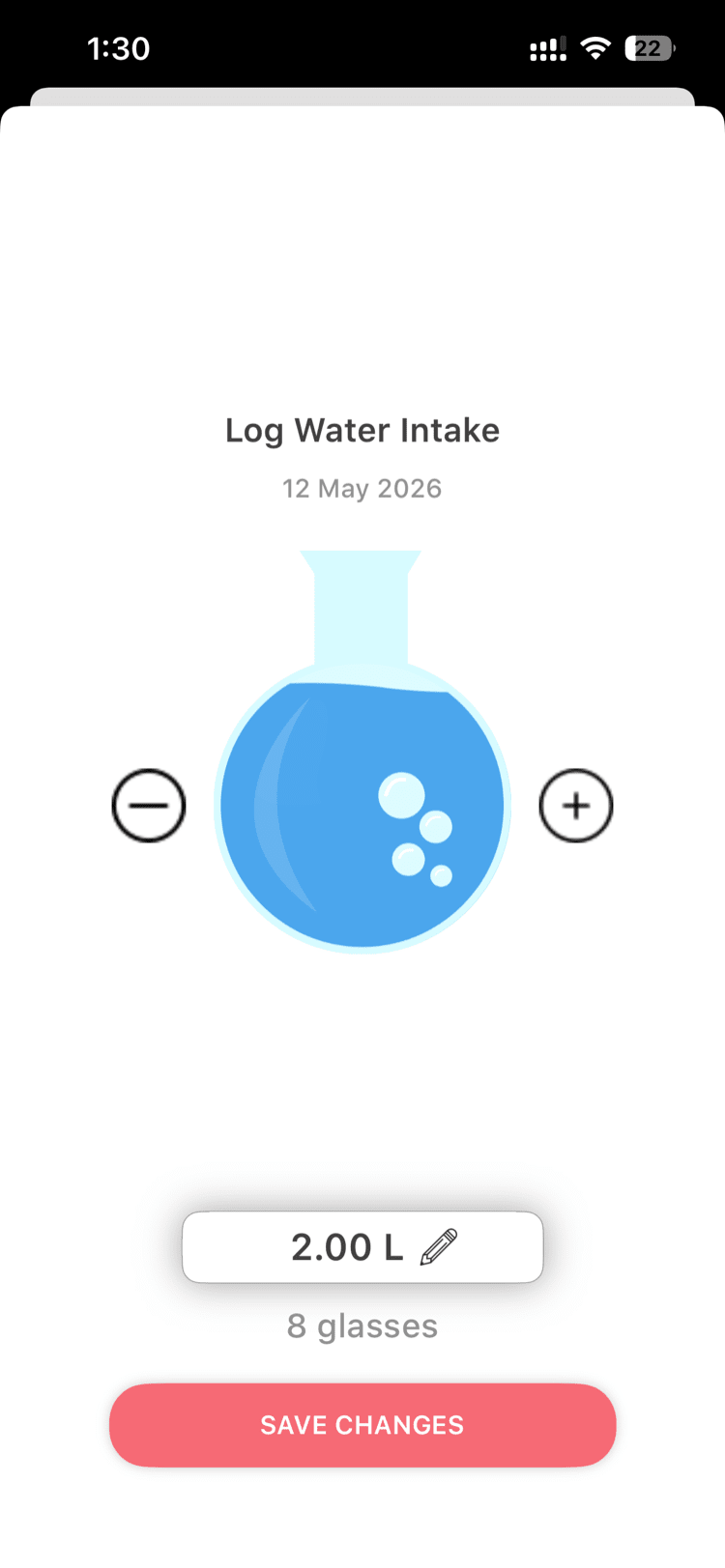
Tip: Log water throughout the day as you drink it, rather than trying to remember everything at the end of the day. Set a water reminder to help you stay on track (see Settings > Reminder Settings).
Glass Size and Units
- 1 glass = 250ml — This is fixed and cannot be changed.
- You can view your water intake in litres or fluid ounces, depending on your unit settings in the app.
Daily Target
- The default daily target is 8 glasses per day (2 litres / ~67 fl oz).
- If your active challenge includes a water intake task, the challenge target overrides the default. For example, a challenge might set your target at 10 glasses per day.
Viewing Your Water Summary
To review your water intake history:
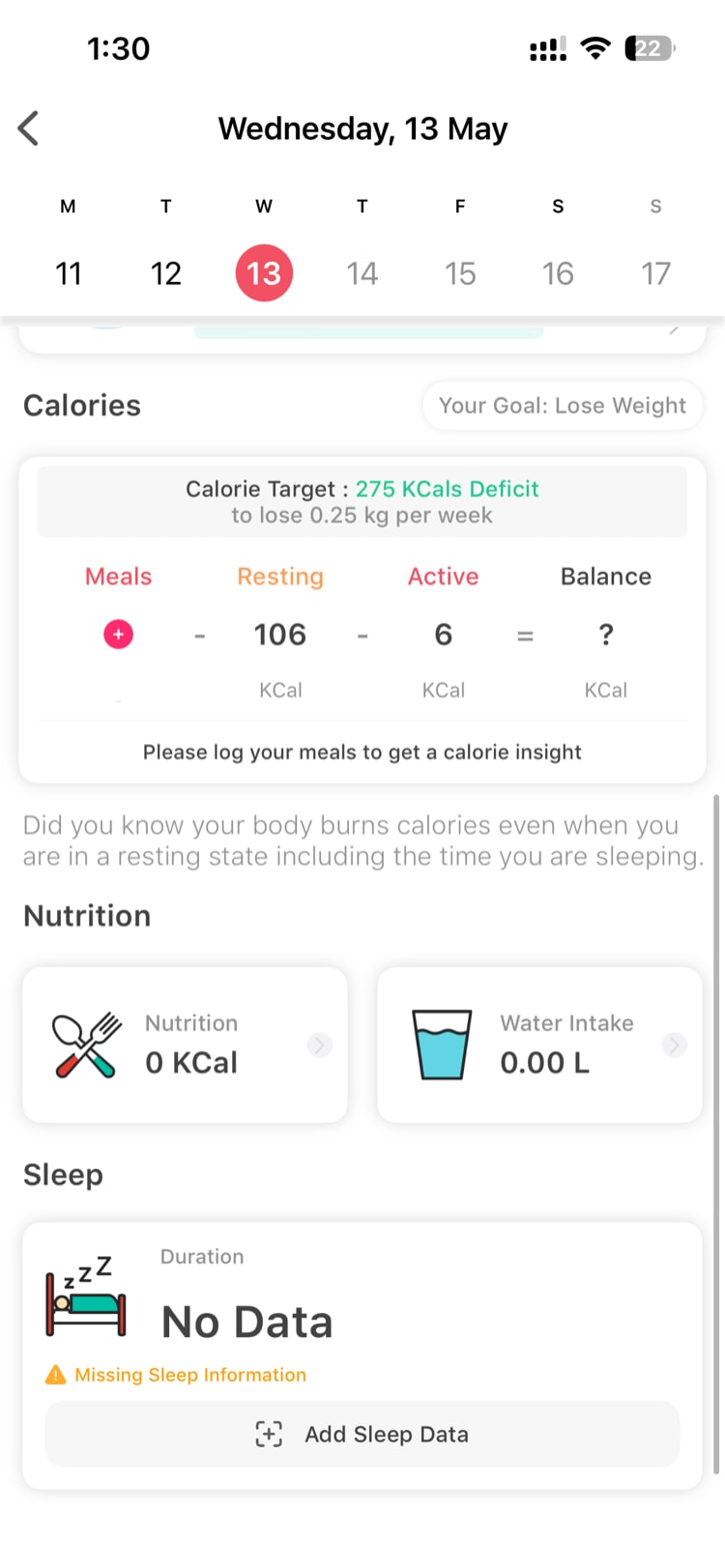
- Tap the Activity Rings card on summary page.
- This opens the Diary View.
- Use the date picker to navigate to any day and see your water intake alongside your other logged activities.
Tips for Staying Hydrated
- Set water reminders — Go to Settings > Reminder Settings to set periodic reminders throughout your day.
- Log each glass as you drink — It only takes one tap.
- Keep a bottle at your desk — You’re more likely to drink water when it’s within reach.
Need more help? Contact support from Settings → Help in the app.
Related articles: