Your Vantage Fit Summary Page is your daily wellness command center. Everything you need to check your progress, log activities, and stay on track with challenges is right here on the Summary tab. Here’s what each section does, from top to bottom.
Summary Page Layout
1. Activity Rings (Top of Screen)
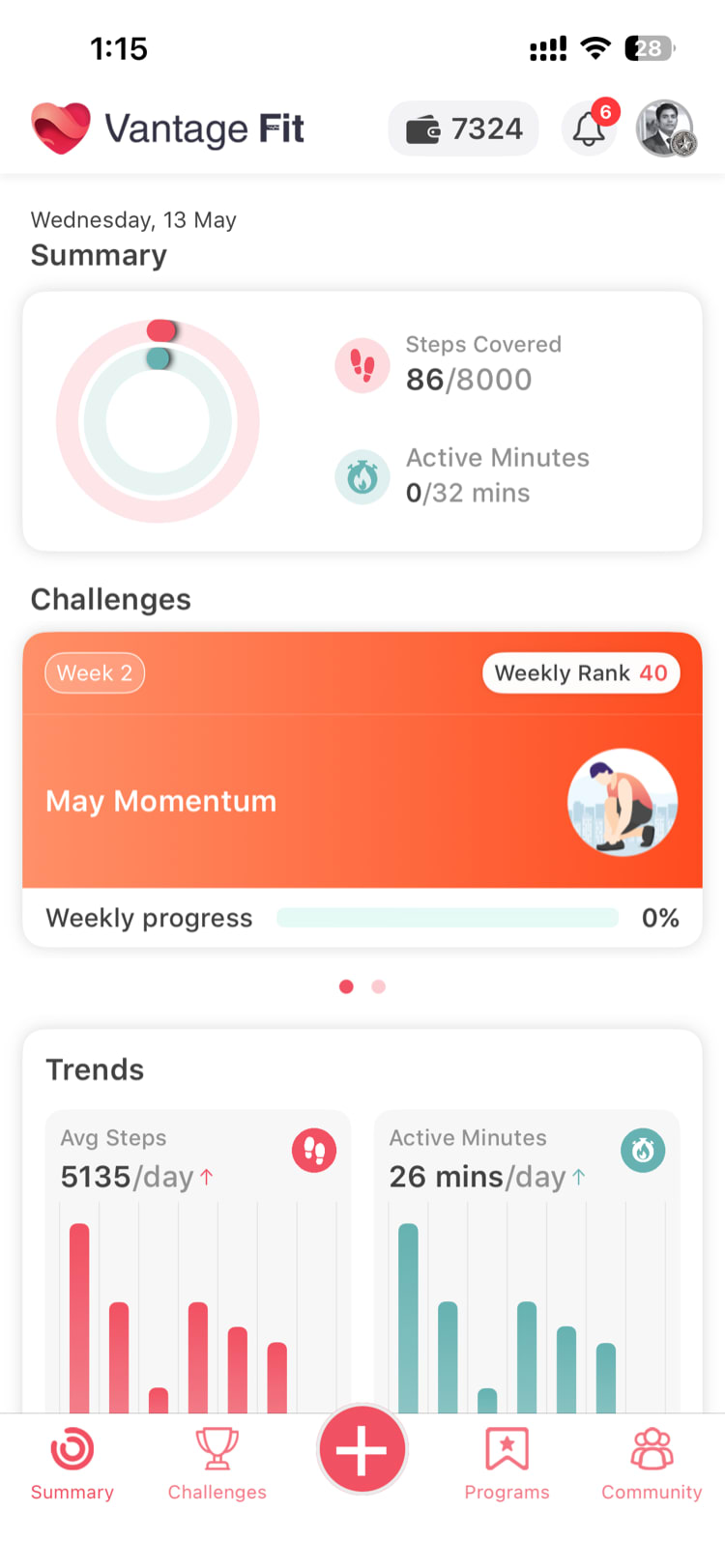
The first thing you see is your Activity Rings card. Two concentric rings show your real-time progress:
- Outer ring — Steps (always visible)
- Inner ring — Active Calories or Active Minutes (company-configured)
The rings fill with a smooth animation as you’re active throughout the day. Tap the rings card to open your Diary View, where you can browse detailed activity data for any date using the date picker.
Tip: Tap the rings card every evening to review your full day’s activity in the diary view.
2. Challenge Carousel
Below the rings, you’ll see a horizontally scrollable Challenge Carousel showing your active challenges. Each card displays:
- Challenge name and image
- Your current progress
- Days remaining
- Quick access to the challenge details
Swipe left or right to browse if you’re enrolled in multiple challenges.
3. Trends Section
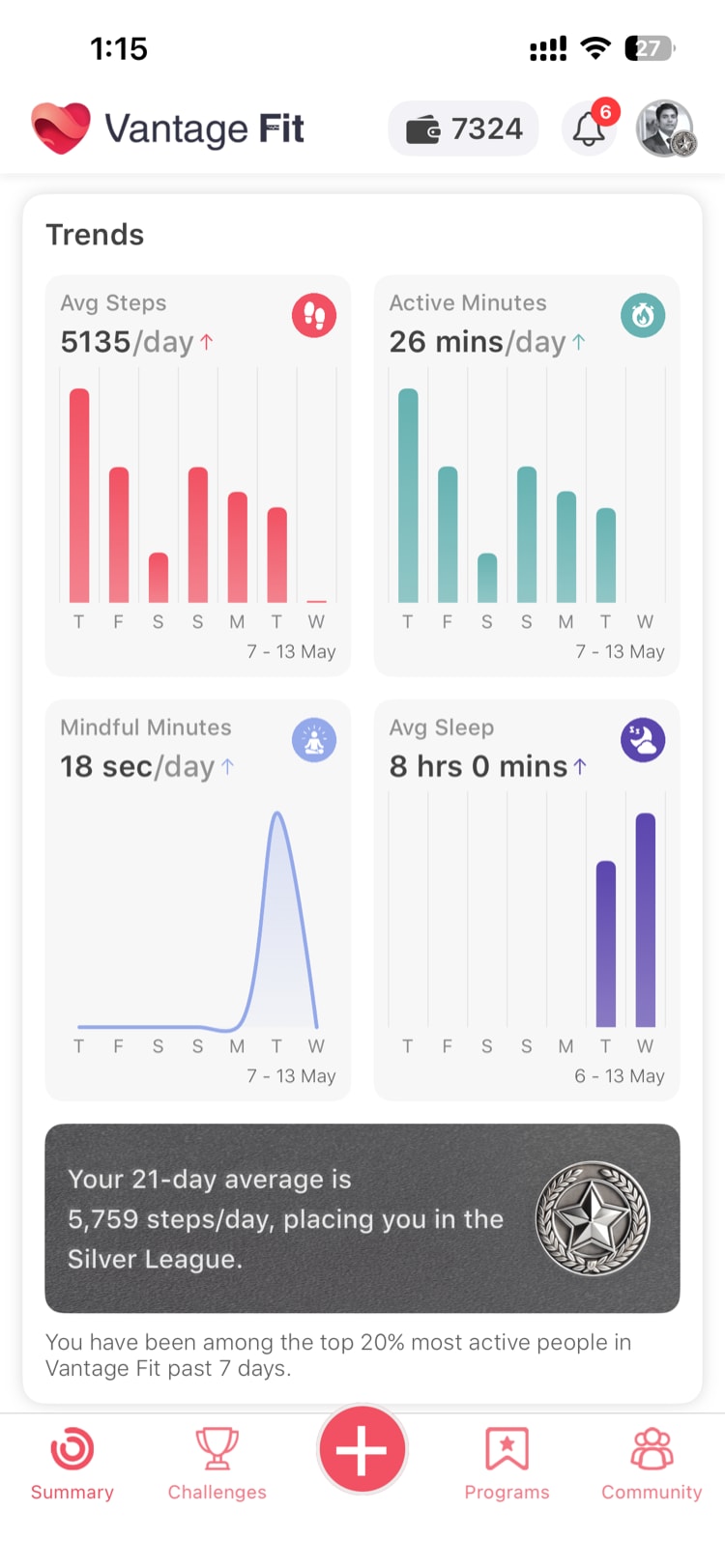
Below the challenge carousel, you’ll find your 7-day Trends — small charts that show your recent activity patterns at a glance:
| Trend | Chart Type | What It Shows |
|---|---|---|
| Steps | Bar chart | Daily step counts over the past 7 days |
| Calories / Active Minutes | Bar chart | Daily active calories or minutes over 7 days |
| Mindful Minutes | Line chart | Minutes spent on mindfulness activities |
| Sleep | Bar chart | Nightly sleep duration |
Note: Mindful Minutes and Sleep trends are only available in Full Mode. If your company uses Lite Mode, you’ll see steps trends only.
If a trend has no data yet, you’ll see an + Add button. Tap it to log that activity right away.
4. Quick Actions via the Plus (+) Menu
The floating Plus (+) button is your shortcut to logging anything. Tap it to access:
- Log Activity — Manually log a workout
- Start Outdoor Activity — Begin a GPS-tracked run, walk, or cycle
- Log Today’s Water Intake — Record water intake
- Log Today’s Meals — Track your food
- Log Sleep for Today — Enter sleep duration
- Track Mood — Record how you’re feeling
- Update Weight — Log your current weight
- Measure heart rate — Take a camera-based pulse reading
- Start 7-Minute Workout — Guided HIIT session
- Start Squats Workout — AI-powered squat counter
This menu is available from any screen, not just the Summary tab.
Summary Page in Lite Mode vs. Full Mode
If your company uses Lite Mode, the Summary Page is simplified:
- Activity Rings show steps only
- Trends show steps only
- No nutrition, sleep, mood, or mindful minutes sections
- Plus menu shows Sync only
In Full Mode, you get the complete Summary Page with all sections described above.
Tip: Not sure which mode your company uses? If you see only steps tracking and no meal or sleep options, you’re in Lite Mode.
Need more help? Contact support from Settings → Help in the app.
Related articles: