The Diary is your personal health journal inside Vantage Fit. It lets you scroll back through any past date to see exactly what you tracked — your activity rings progress, meals, water intake, and sleep. It’s also the fastest way to log data for a previous day you may have missed.
Opening the Diary
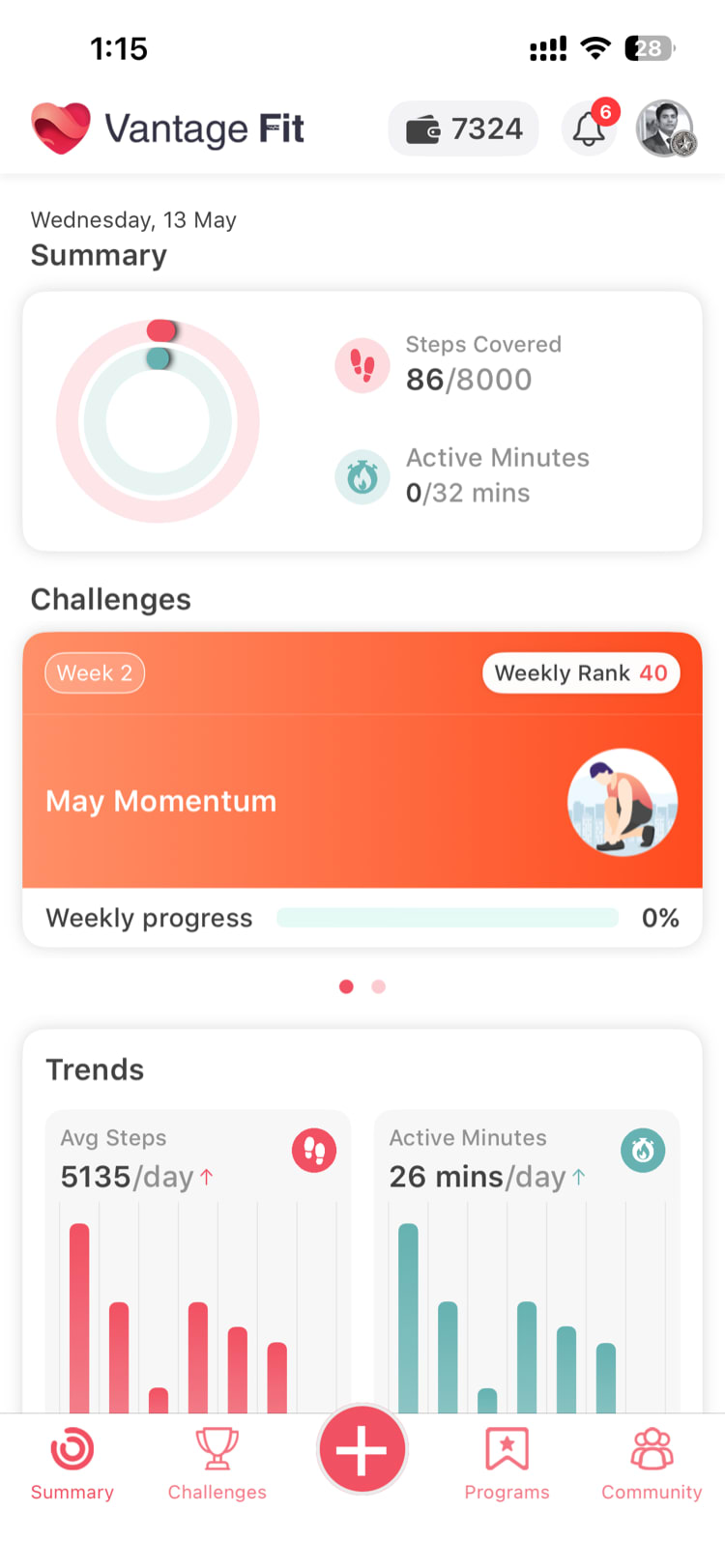
Tap on the activity rings card on your Summary tab. This opens the Diary view, which shows a detailed breakdown of your day.
Navigating Between Dates
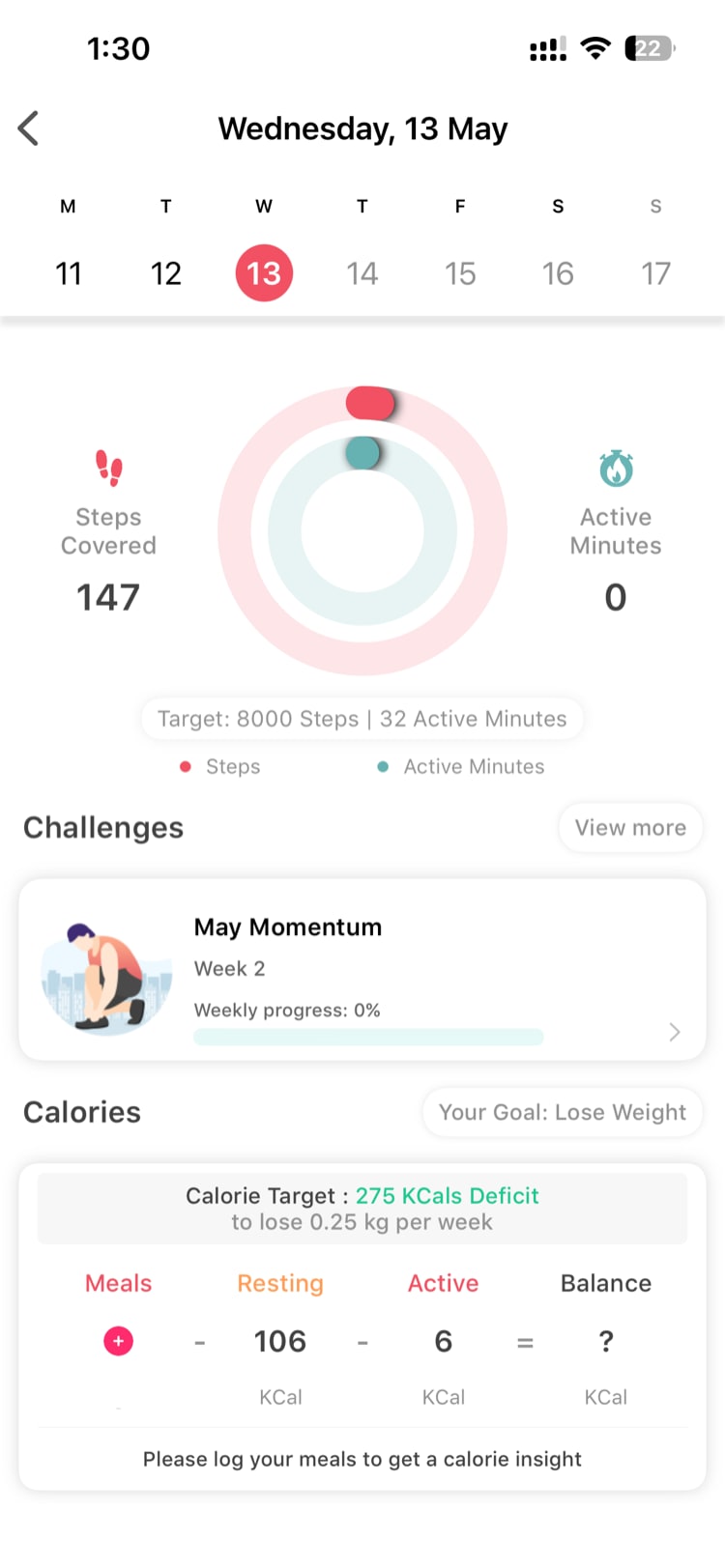
At the top of the Diary view, you’ll see a date picker. Use it to move between days:
- Swipe left or right on the date strip to browse recent days
- Tap a specific date to jump directly to it
- The selected date is highlighted so you always know which day you’re viewing
Tip: The Diary defaults to today’s date when you first open it. If you’re looking for a specific past date, tap the date header to open a calendar view for faster navigation.
What You’ll See in the Diary
Each day in the Diary displays several summary cards:
Activity Rings
Your two activity rings for the selected date — steps and active calories (or active minutes). The rings show how much of your daily goal you completed. A fully closed ring means you hit 100% of that goal for the day.
Meals Summary
A card showing your total calorie intake for the day, broken down by meal (breakfast, lunch, dinner, snacks). You’ll see the calorie count and a brief summary of what was logged.
Water Summary
Your total water intake for the day, displayed in glasses, litres, or fluid ounces depending on your settings. The card shows how close you got to your daily water goal.
Sleep Summary
Your logged sleep duration for the selected date, including when you went to bed and when you woke up (if those details were recorded).
Quick-Logging From the Diary
Here’s a handy shortcut: each summary card in the Diary also acts as a quick-log entry point. If you notice you forgot to log something for a past day:
- Navigate to that date using the date picker
- Tap the relevant summary card (e.g., tap the Water card to log water)
- Enter your data — it will be recorded for that specific date
This is especially useful for catching up on days you missed. Instead of trying to remember to backdate entries from the main logging screens, just open the Diary, go to the day, and tap the card.
Note: Some auto-tracked data (like steps from your phone or wearable) can’t be manually added through the Diary. The quick-log feature works for manually tracked metrics like meals, water, and sleep.
Tips for Getting the Most From Your Diary
- Review your week every Sunday — scroll through the past seven days to spot patterns in your eating, hydration, or sleep
- Use it after vacations or sick days — if you missed logging for a few days, the Diary lets you backfill quickly
- Check ring completion trends — if your rings are consistently closing early in the week but not on weekends, you may want to adjust your routine
What If a Day Shows No Data?
If you navigate to a date and see empty cards, it means no data was logged or synced for that day. This could happen if:
- You didn’t carry your phone or wear your connected device
- Your health data source wasn’t syncing properly
- You simply didn’t log any manual entries
You can still tap the empty cards to add data retroactively, as long as it’s a manually tracked metric.
Need more help? Contact support from Settings → Help in the app.
Related articles: