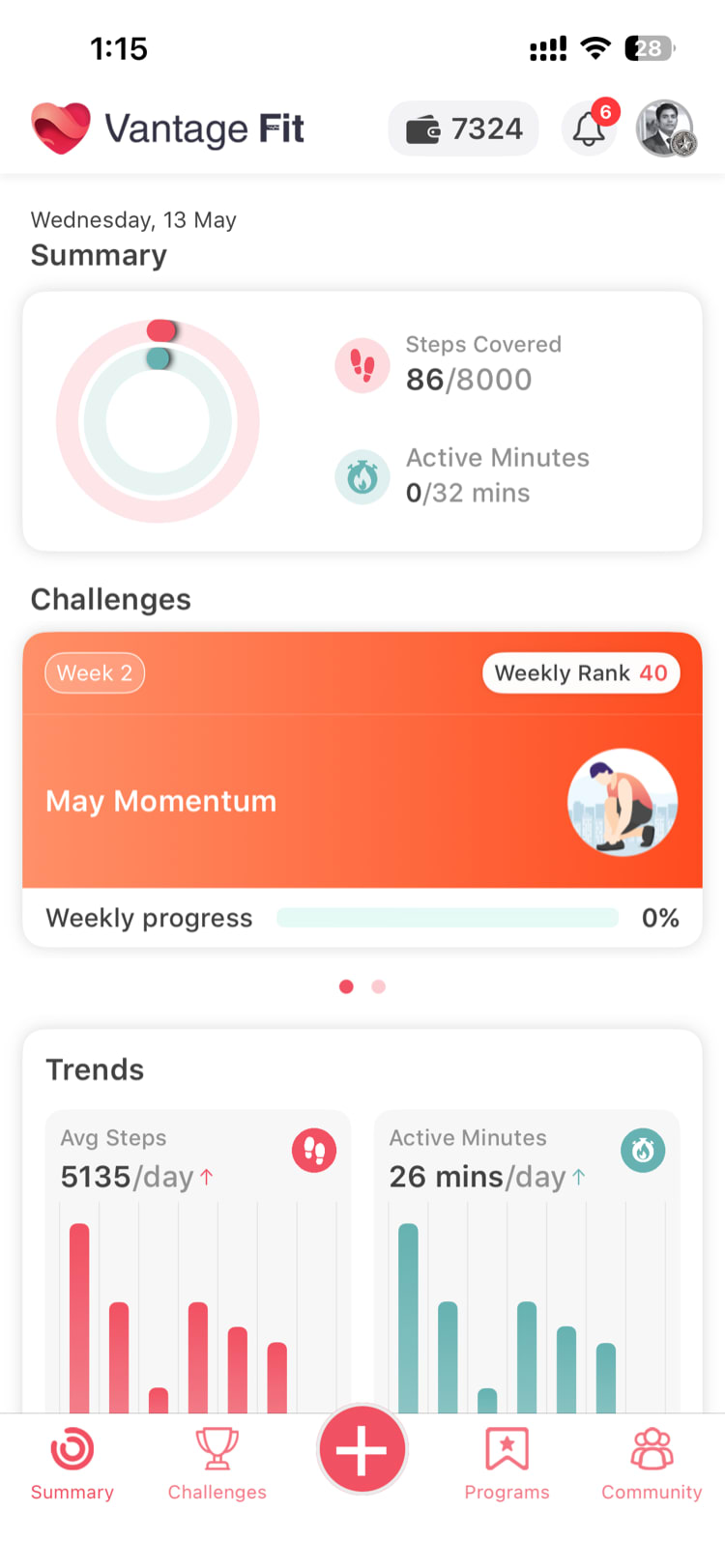
Activity Rings are the circular progress indicators at the top of your Vantage Fit Summary Page. They give you an instant, visual snapshot of how you’re doing today against your daily targets. As you move, the rings fill up in real time with a smooth animation.
The Two Rings
Your Summary Page shows two concentric rings:
Ring 1 — Steps (Always Present)
The outer ring tracks your daily step count. This ring is always visible for every user.
- Your step target comes from your active challenge task. If your current challenge has a daily steps goal of 8,000 steps, that becomes your ring target.
- If you’re not in a challenge (or your challenge doesn’t include a steps task), the default target is 10,000 steps.
- The ring fills proportionally as you walk throughout the day.
Ring 2 — Active Calories or Active Minutes
The inner ring tracks either Active Calories or Active Minutes, depending on how your company has configured Vantage Fit.
- Active Calories — calories burned through movement (not your resting metabolic rate). Default target: 250 calories.
- Active Minutes — minutes spent in moderate-to-vigorous physical activity. Target set by your challenge or company default.
Your company’s HR admin chooses which metric appears in Ring 2. You’ll see one or the other, not both.
Note: You cannot change which metric Ring 2 displays. This is a company-wide setting configured by your admin.
How Targets Are Set
Your ring targets are determined in this order:
- Active challenge task target — If you’re enrolled in a challenge with a steps task set to 12,000 steps/day, your Steps ring target becomes 12,000.
- Default target — If no challenge is active, the app uses defaults: 10,000 steps for Ring 1 and 250 calories (or company-configured active minutes) for Ring 2.
Viewing Your Ring Details
Want more detail than just the rings? Tap the Activity Rings card on summary page. This opens your Diary View, which shows:
- A date picker so you can browse past days
- Detailed breakdowns of steps, calories, active minutes, and other logged activities for the selected day
- Your water intake, sleep, meals, and mood entries for that day
How the Rings Update
- Rings update in real time as your phone or connected wearable records activity.
- When you open the app, you’ll see a brief fill animation as the rings catch up to your current progress.
- Once a ring reaches 100%, it completes its circle. You can exceed your target — the ring will show you’ve gone beyond your goal.
Tip: Check your rings throughout the day to stay motivated. A quick glance tells you whether you need to squeeze in a few more steps before the day ends.
Quick Reference
| Ring | Metric | Default Target | Source |
|---|---|---|---|
| Outer (Ring 1) | Steps | 10,000 steps | Always present |
| Inner (Ring 2) | Active Calories OR Active Minutes | 250 calories | Company-configured |
Need more help? Contact support from Settings → Help in the app.
Related articles: