You can force a step sync anytime to make sure your latest activity appears in Vantage Fit. There are two quick ways to do it.
Method 1: Just Open the App
The simplest way to sync is to open Vantage Fit. Every time the app launches or comes back from the background, it triggers an immediate sync from your connected step source (Apple Health on iPhone; Google Fit, Fitbit, or Garmin on Android).
No tapping required — just opening the app does it.
Method 2: Tap Sync from the Plus Menu
-
Tap the Plus (+) button on summary page — this opens the quick action menu
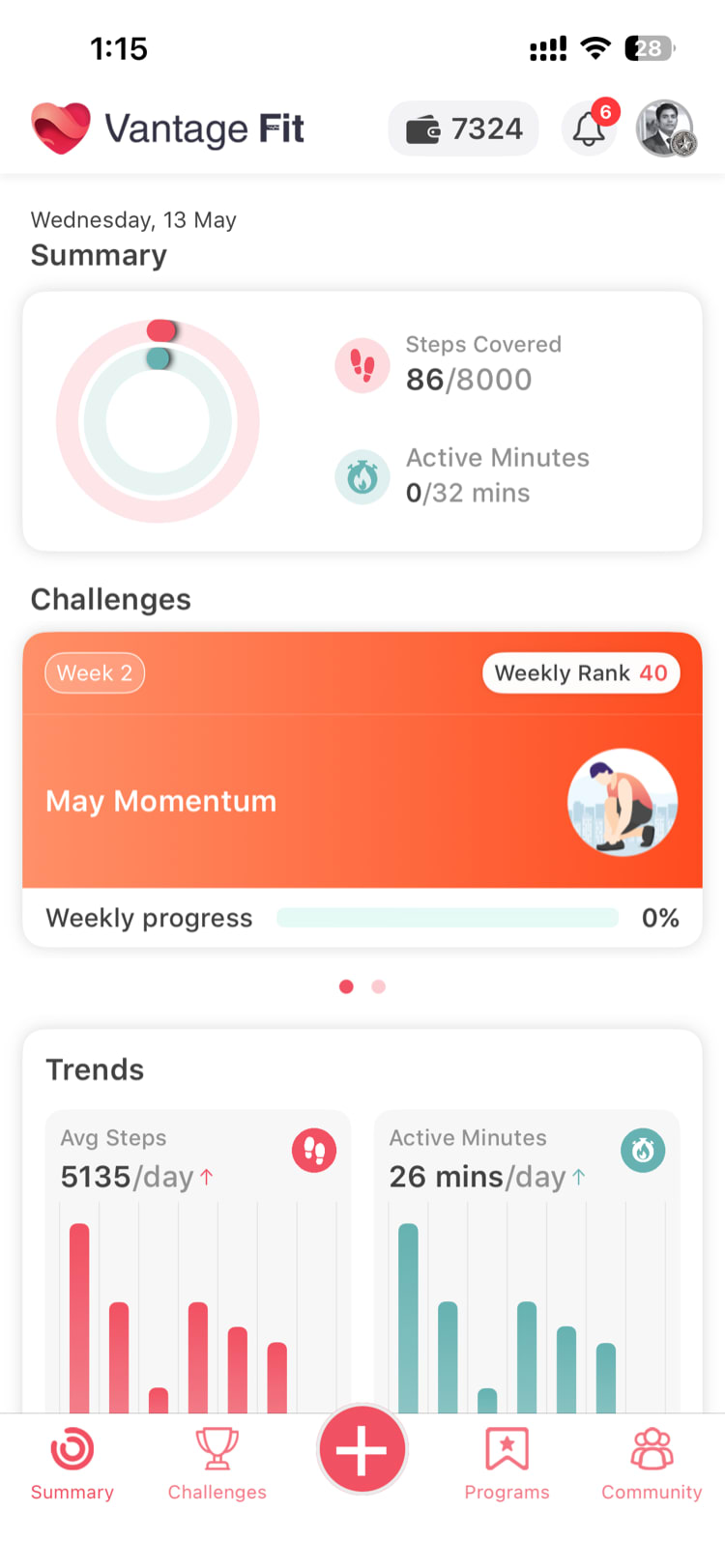
-
Tap “Sync”
- Your steps update — the app fetches the latest data from your connected device and refreshes summary page
Wait Between Syncs
There’s a 15-second minimum between syncs. If you tap Sync again within 15 seconds, the app waits until the cooldown passes. This prevents unnecessary battery drain.
Tip: You don’t need to sync repeatedly. One sync pulls all available data up to that moment. If your steps still look wrong after syncing, the issue is likely with your device connection, not the sync itself.
When Manual Sync is Useful
Manual sync is helpful when:
- Your steps look stale — you’ve been walking but summary page hasn’t updated
- You just finished a workout — and want it to appear in Vantage Fit immediately
- You reconnected a device — and want to pull in the latest data
- You’re checking a challenge leaderboard — and want your latest steps counted before a deadline
What Manual Sync Does
| Device | What Happens on Sync |
|---|---|
| Apple Health | Reads latest steps, workouts, and health data from Apple Health |
| Google Fit | Reads latest Android steps when no Fitbit or Garmin is connected |
| Fitbit | Fetches latest step and workout data |
| Garmin | Pulls last 7 days from Garmin (Garmin normally pushes data automatically) |
Need more help? If syncing doesn’t resolve your step discrepancy, see Why Are My Steps Different from My Device? or My Steps Aren’t Syncing — What Do I Do?.
Related articles: