To sign in, you’ll need your work email (or employee ID) and whichever sign-in method your company has enabled — password, OTP (one-time code), or SSO (Single Sign-On).
Signing In on the Mobile App
-
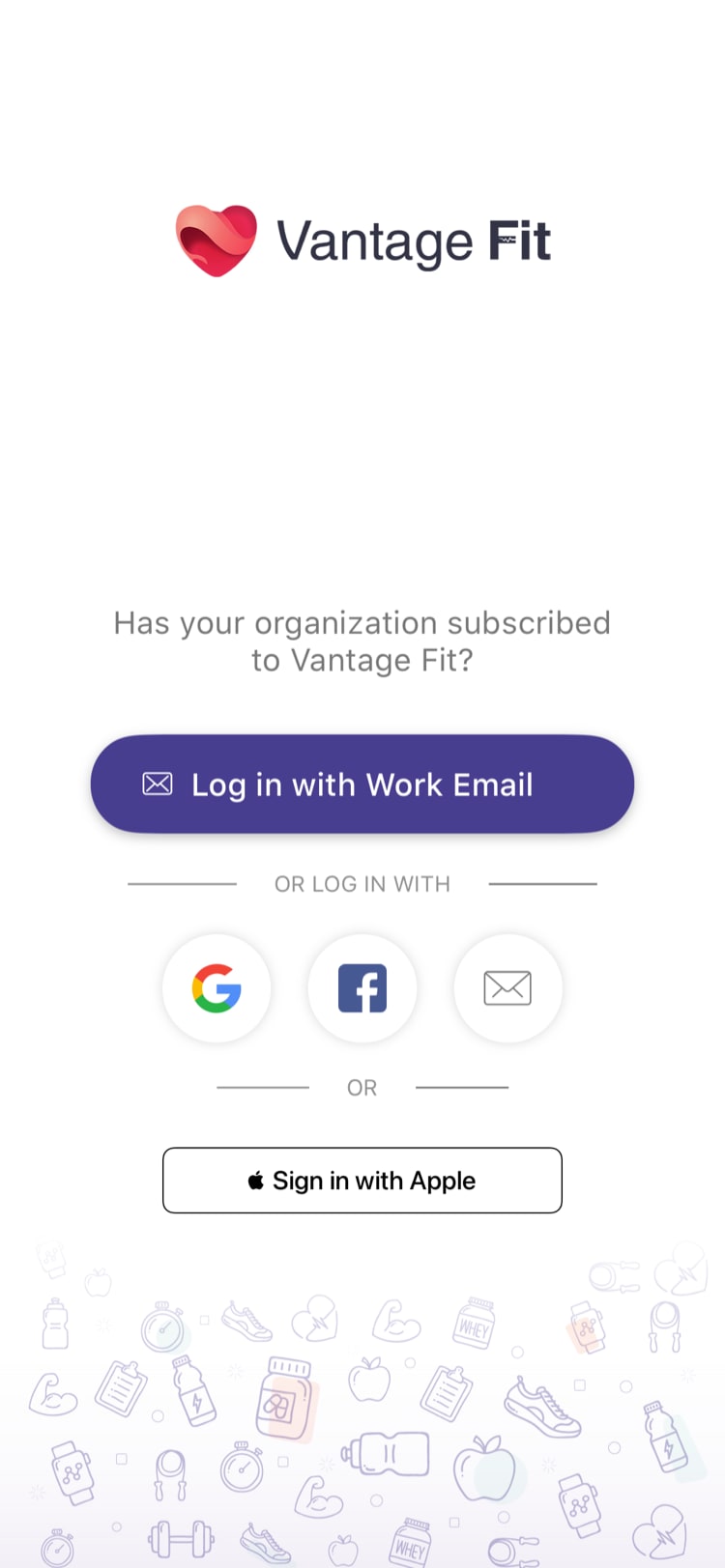
Open Vantage Fit — if you’ve signed in before, you’ll go straight to summary page.
-
Tap “Login with Work Email”
-
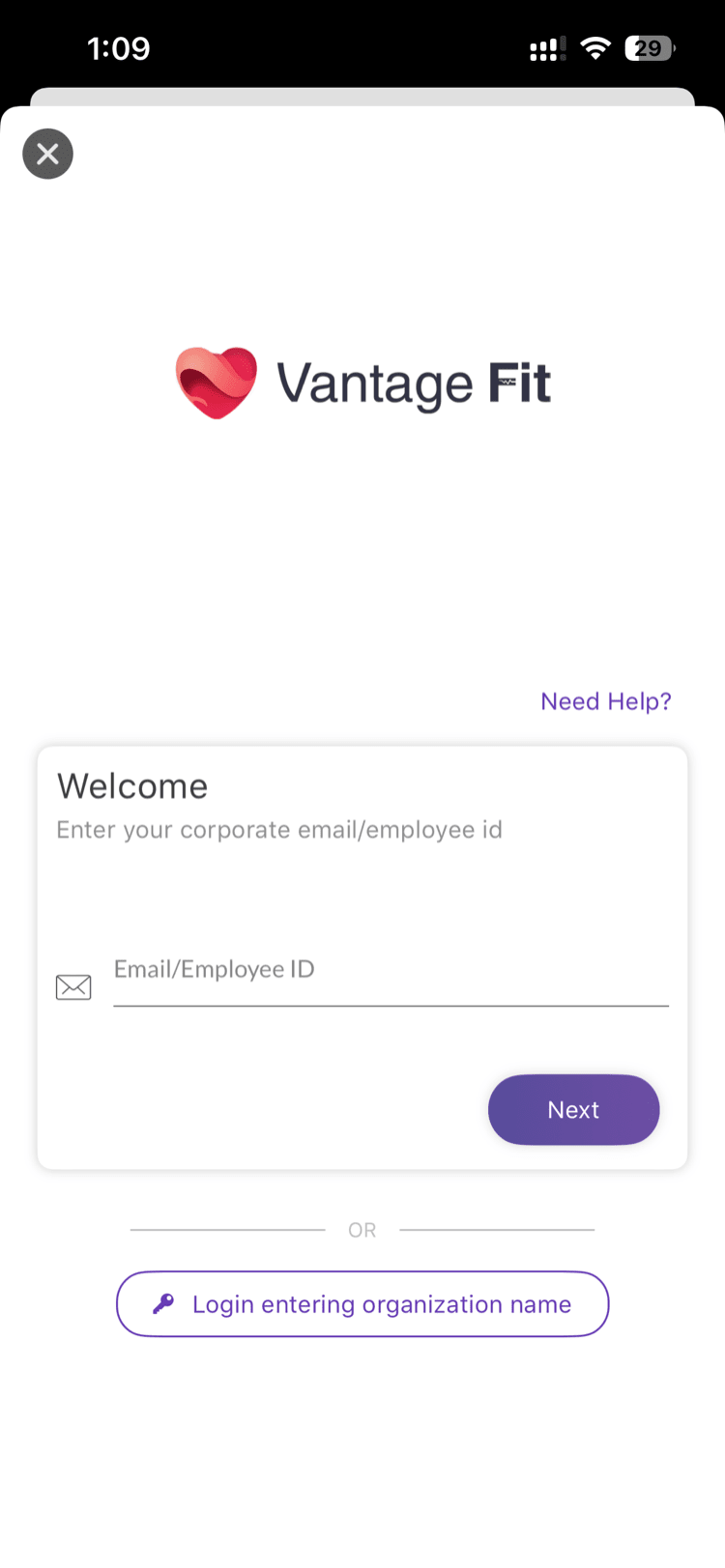
Enter your work email — the system detects your company and shows your available sign-in options.
-
Sign in using your method:
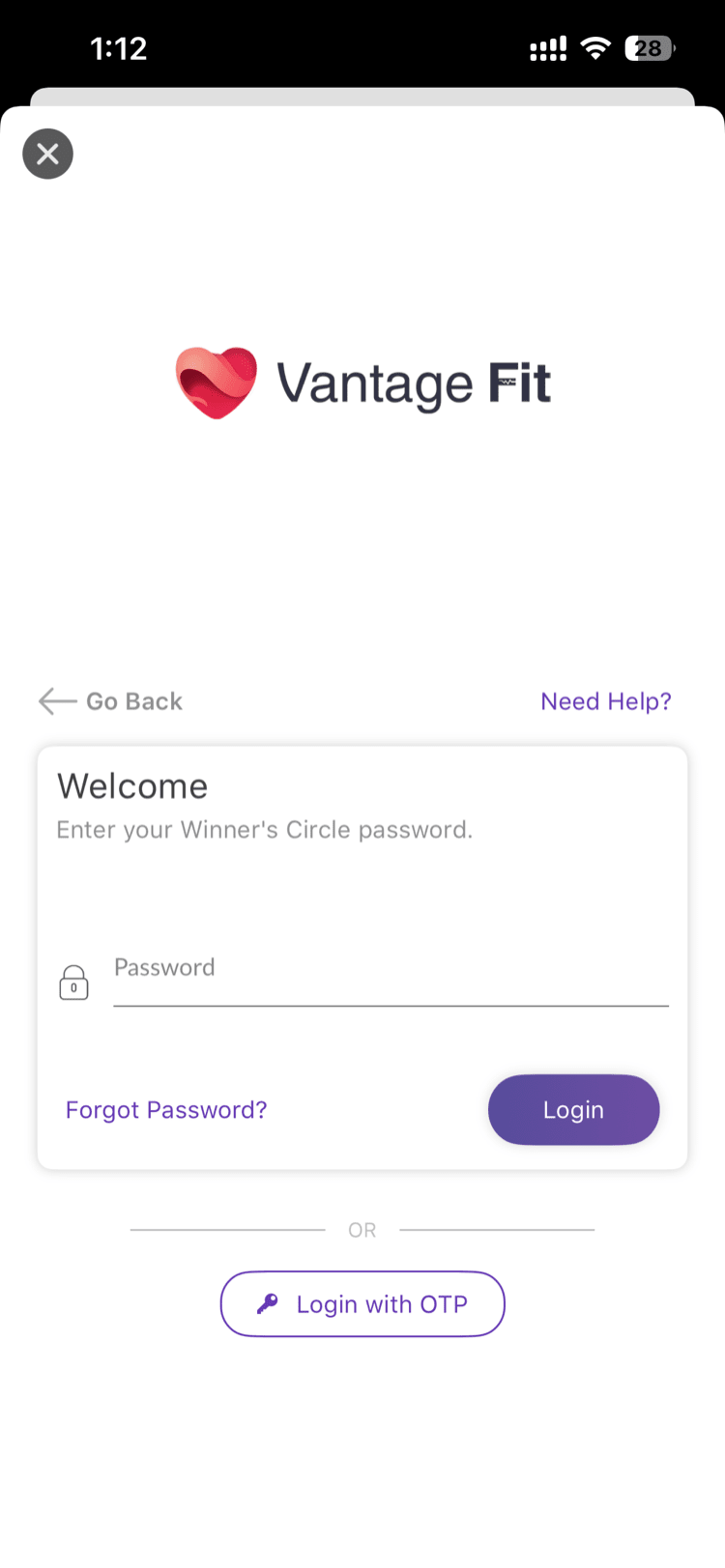
Password Sign-In
- Enter your password and tap Sign In
- If you’d rather use a one-time code, tap “Login with OTP”
- Forgot your password? Tap “Forgot Password?” — you’ll get a reset link sent to your email (valid for 1 hour)
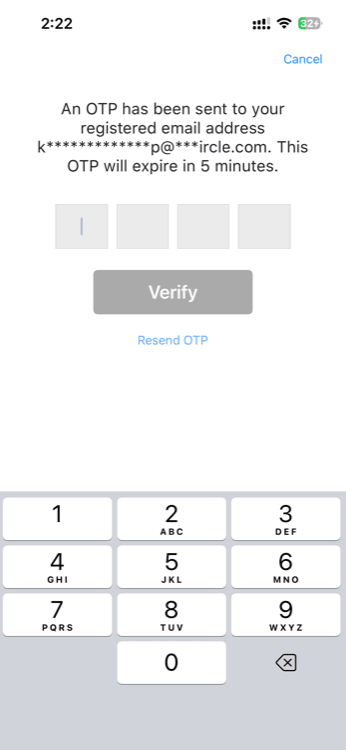
OTP Sign-In (One-Time Password)
- A 4-digit code is sent to your registered email automatically
- Enter the code within 10 minutes
- Didn’t get it? Tap “Resend” after 30 seconds (the previous code is invalidated)
SSO Sign-In (Single Sign-On)
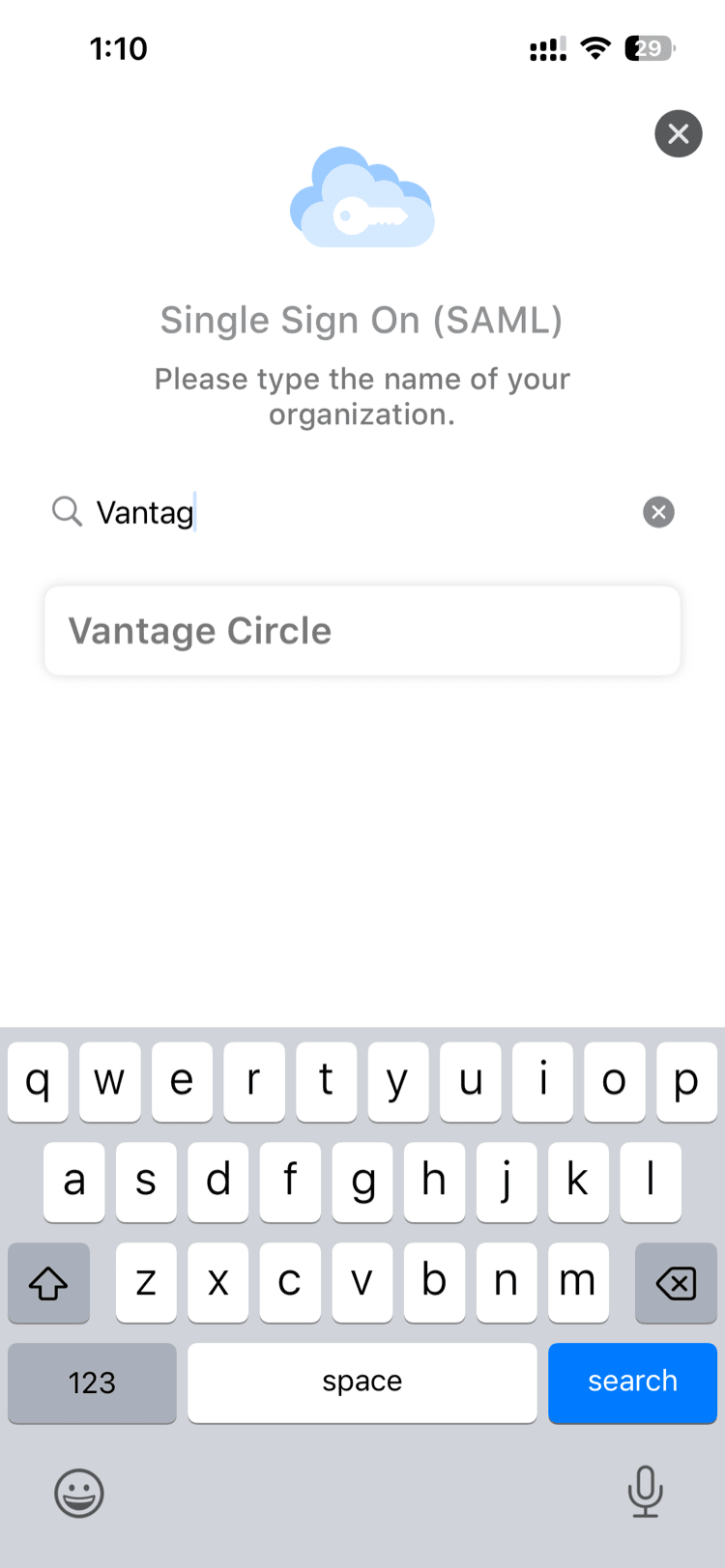
- You can tap “Login entering organization name” from the initial screen
- Search for your organization (type at least 3 characters)
- Select your employer → you’ll be redirected to your company’s login page
- Sign in with your corporate credentials → you’re back in Vantage Fit
Tip: If your company uses SSO and you’ve already entered your email, the app may skip the search and take you directly to your company’s login page.
Signing In on the Web App
Open any Vantage Fit email you have received and click Open Vantage Fit. If you’re asked to sign in, enter your work email and password to continue to the web app.
What Happens After Sign-In
Every time you sign in, you’ll see the Terms & Conditions screen — tap “Agree” to continue. (These appear each time because they may have been updated.)
Full Mode users then see the Health Profile screen. You can:
- Confirm your existing details and proceed
- Update any parameter manually (height, weight, age, fitness goal)
- Import from Apple Health or Health Connect to auto-fill and update your calorie goal
Lite Mode users go straight to the Summary Page after accepting T&C — no health profile setup.
Staying Signed In
Vantage Fit keeps you signed in automatically. If your session ever expires, you’ll see a message asking you to sign in again — just tap and re-enter your credentials.
Need more help? If you can’t sign in, check Troubleshooting: I Forgot My Password or I See “Company Not Found”.
Related articles: