Single Sign-On lets you sign in to Vantage Fit using your company’s existing login system — the same credentials you use for Outlook, Slack, or other corporate tools. No separate Vantage Fit password needed.
What is SSO?
SSO means your employer has connected Vantage Fit to your company’s login system. Instead of creating a separate Vantage Fit password, you sign in through the same login page you use for other work tools like Outlook, Slack, or your company portal.
Two Ways to Sign In with SSO
Option 1: Search for Your Organization
- Open Vantage Fit and tap “Login with Work Email”
- On the login screen, tap “Login entering organization name” (the alternate option below the email field)
-
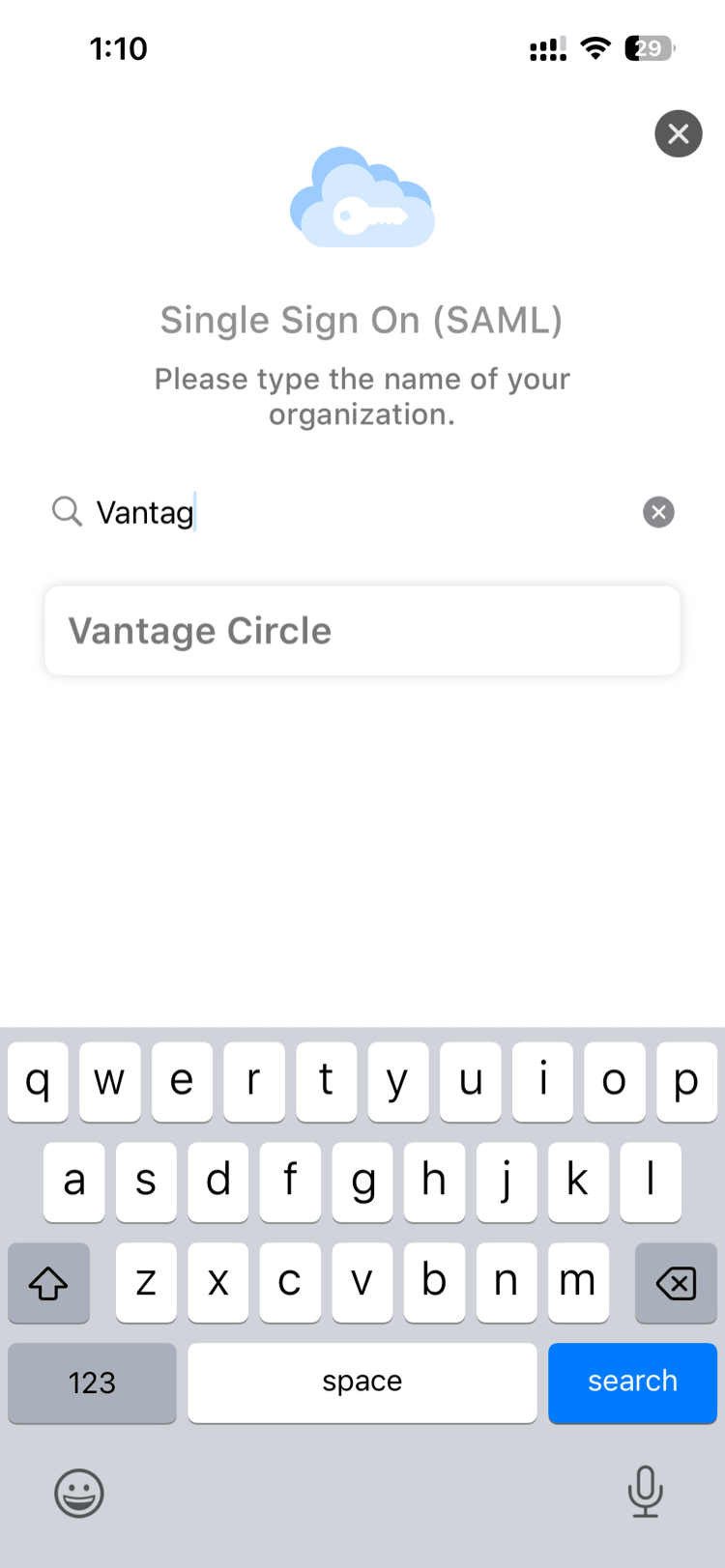
Type your organization name — start typing and results appear after 3 characters
-
Select your company from the results
-
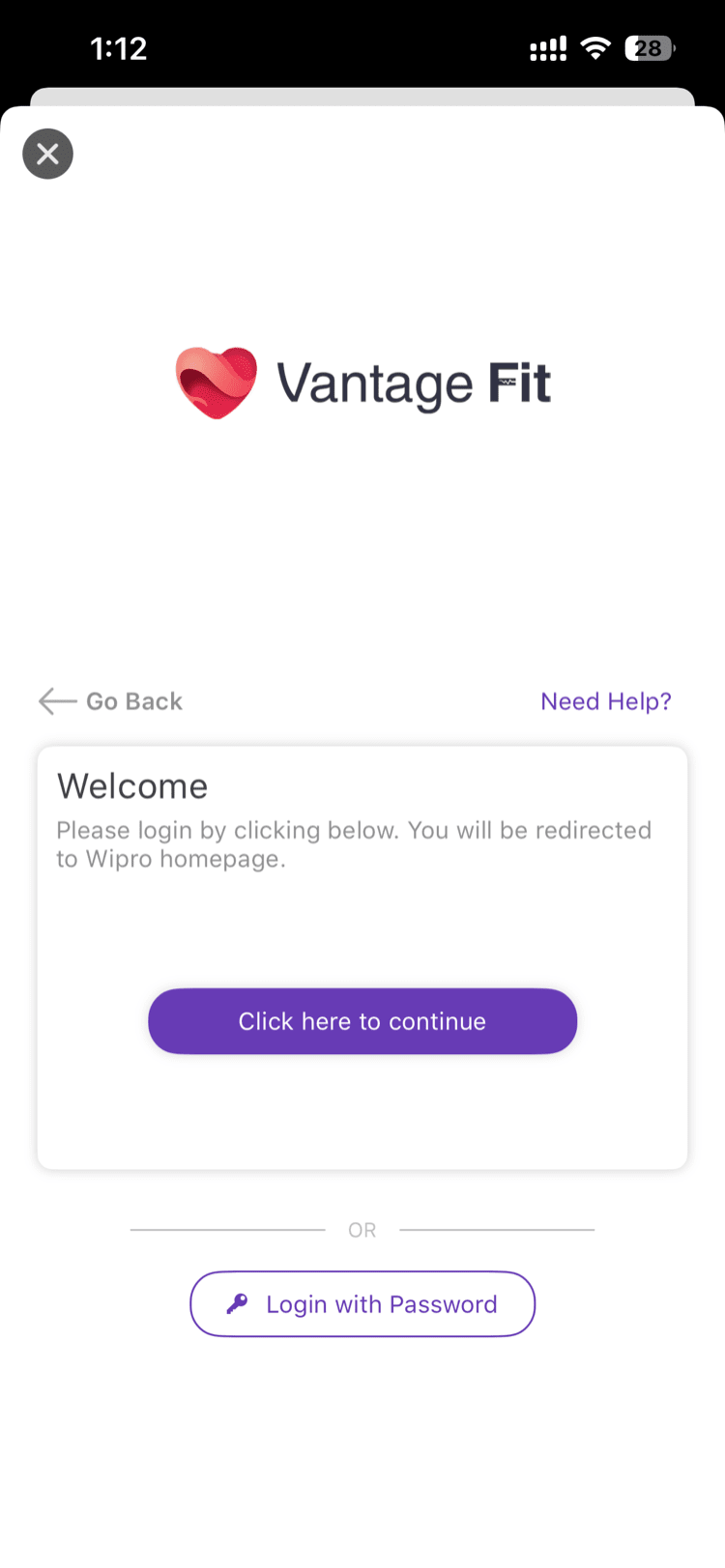
You’re redirected to your company’s login page — sign in with your corporate credentials (the same ones you use for email, VPN, etc.)
-
Done — you’re signed in and land on summary page (or onboarding if it’s your first time)
Option 2: Enter Your Email (Auto-Detected)
-
Open Vantage Fit and tap “Login with Work Email”
-
Enter your work email and tap Next
-
If SSO is enabled for your company, the app automatically redirects you to your company’s login page — no need to search for your organization
-
Sign in with your corporate credentials and you’re done
Tip: If your company uses SSO, entering your email is usually the fastest path — the app detects SSO automatically and skips the organization search.
After SSO Sign-In
- First time? You’ll see Terms & Conditions, then optional onboarding
- Returning user? Straight to summary page
- You’ll stay signed in — no need to re-authenticate each time you open the app
Troubleshooting SSO
Can’t find your company when searching:
- Type at least 3 characters
- Try your company’s full legal name or a common abbreviation
- Ask your HR admin to confirm SSO is set up for Vantage Fit
Redirected but can’t log in:
- Use the same credentials you use for other corporate tools
- If you recently changed your corporate password, use the new one
- Contact your IT helpdesk for help with your company login
Keeps looping back to sign-in:
- Close and reopen the app, then try again
- Try signing in to another work tool to make sure your company login is still active
Need more help? SSO issues are usually related to your company’s login system. Contact your IT helpdesk for sign-in problems.
Related articles: