The Settings screen in Vantage Fit lets you control your preferences, device connections, and account. Here’s everything available.
How to Access Settings
Tap your profile photo (top right) to open your profile, then tap Settings. The screen is organized into toggles, a Configuration section, and an Account Settings section.
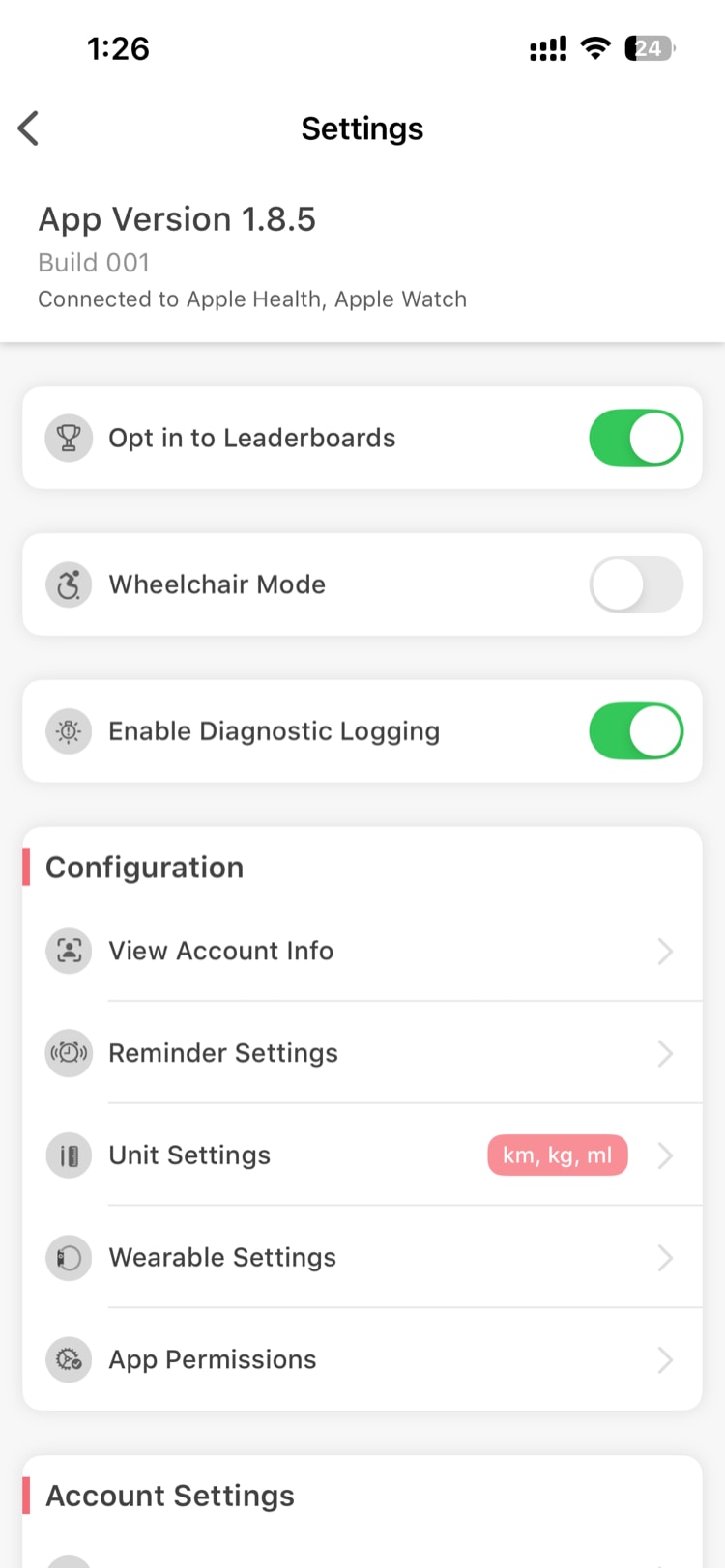
Toggles
These are at the top of the Settings screen:
| Toggle | What It Does |
|---|---|
| Opt in to Leaderboards | Show or hide yourself on challenge leaderboards. You still earn points when opted out — you’re just not visible to others. |
| Wheelchair Mode | Adds “Wheelchair” as a workout type in Start Activity for GPS tracking. See What is Wheelchair Mode? |
| Enable Diagnostic Logging | Collects additional logs to help support troubleshoot issues. You can leave this on. |
Configuration
View Account Info
Shows your registered email, company name, and account details.
Reminder Settings
Set daily reminders for wellness habits:
- Mood — check in emotionally
- Water — stay hydrated
- Breakfast, Lunch, Snacks, Dinner — log your meals
For each reminder, you can set the time of day and choose which days of the week it repeats.
Unit Settings
Customize measurement units. Changes apply immediately across the entire app.
| Measurement | Options |
|---|---|
| Distance | Kilometers (km) / Miles (mi) |
| Large Weight (body weight) | Kilograms (kg) / Pounds (lbs) |
| Small Weight (food logging) | Grams (g) / Ounces (oz) |
| Water / Liquids | Litres (L) / Fluid Ounces (fl oz) |
| Energy | Calories (cal) / Kilocalories (kcal) |
| Height | Centimeters (cm) / Feet & Inches (ft/in) |
See How Do I Change Measurement Units? for details.
Wearable Settings
Connect or disconnect your fitness device. At least one health platform connection must always be enabled — this is how Vantage Fit receives your step data:
- iPhone → Apple Health (connected during onboarding)
- Android → Google Fit for steps, plus Health Connect for supported Android health data
You can optionally connect Fitbit or Garmin on top of this, which takes over as your primary step source. See How Do I Change or Disconnect My Fitness Device? for details.
App Permissions
Review and manage permissions Vantage Fit needs:
- Health data access — Apple Health on iPhone, Google Fit for Android steps, and Health Connect for supported Android health data
- Notification permissions — for challenge reminders and achievement alerts
- Location permissions — needed for GPS workout tracking
Tapping a permission opens your phone’s system settings where you can grant or revoke access.
Account Settings
Change Password
Update your Vantage Fit password. This option only appears if your company uses password-based authentication (email + password). If you sign in via SSO or OTP only, you won’t see this.
Delete Account
Permanently delete your Vantage Fit account and all associated data. You’ll need to verify with an OTP sent to your registered email. This is permanent and cannot be undone. See How Do I Delete My Account? for the full process.
Logout
Sign out of Vantage Fit on this device. Your data is preserved — you can sign back in anytime.
Need more help? Contact your HR admin or reach out to support via the Help option in the app menu.
Related articles: